Stripe Payments
Connect Stripe, charge a fixed price or a calculated amount, and manage paid orders.
Pro feature
Stripe payments needs HappyDivi Form Pro. On Free, the setting shows with a lock so you can see where it lives.
Connect Stripe#
- Go to HappyDivi Form → Settings → Payments.
- Choose test mode and your currency.
- Paste your Test Secret Key and Test Publishable Key from Stripe. Saving creates the webhook for you when your site can be reached by Stripe.
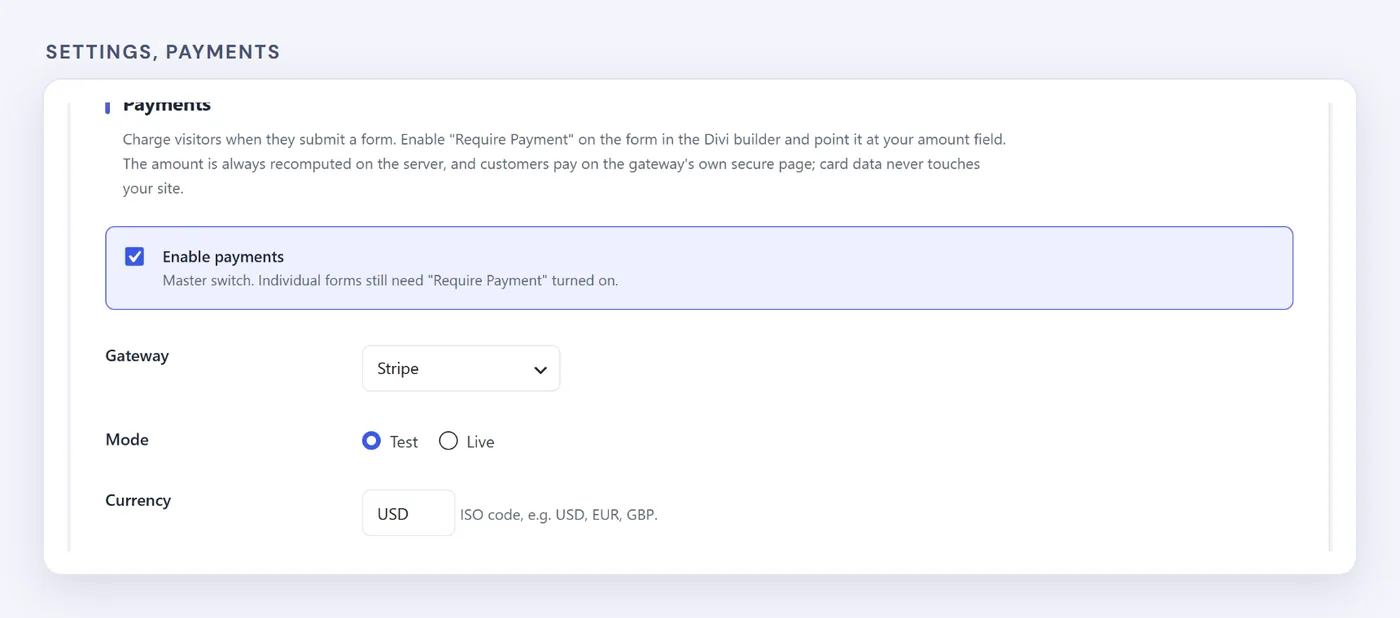
Keys are stored encrypted.
Charge on a Form#
On the form module, turn on Require Payment. Choose a fixed Price, or From a form field to use a Number, priced choice or Calculated field. The amount is always worked out again on the server, so it cannot be changed in the browser.
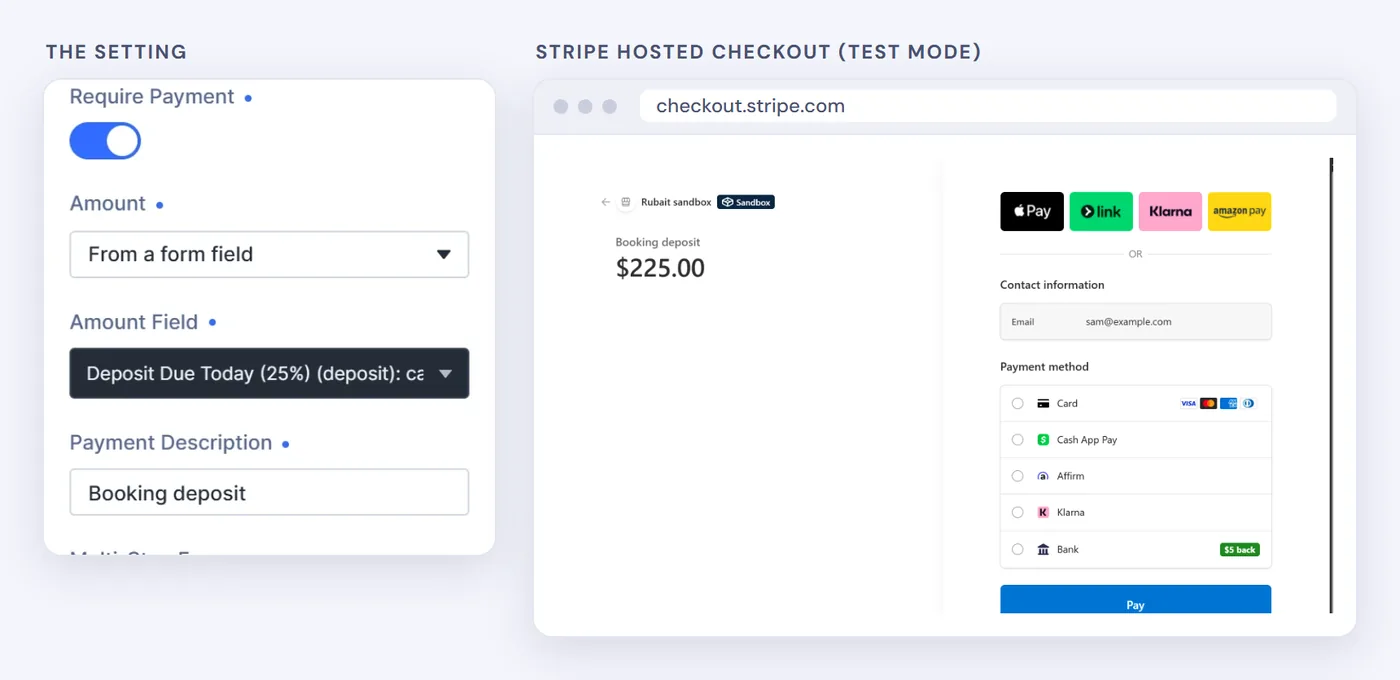
Add a Payment Description for the Stripe page.
What Happens When Someone Pays#
- The entry is saved as pending.
- The visitor pays on Stripe's own page, so card details never reach your site.
- Once Stripe confirms payment, the entry becomes paid and emails go out.
Unpaid means no emails
Notifications wait for confirmed payment, so an abandoned checkout notifies nobody.
Manage Orders#
Go to HappyDivi Form → Orders to see pending, paid, failed and refunded payments. Each entry has Check Status, which asks Stripe straight away, and Refund Payment.
See our tested walkthrough, Stripe payments with a Divi form.