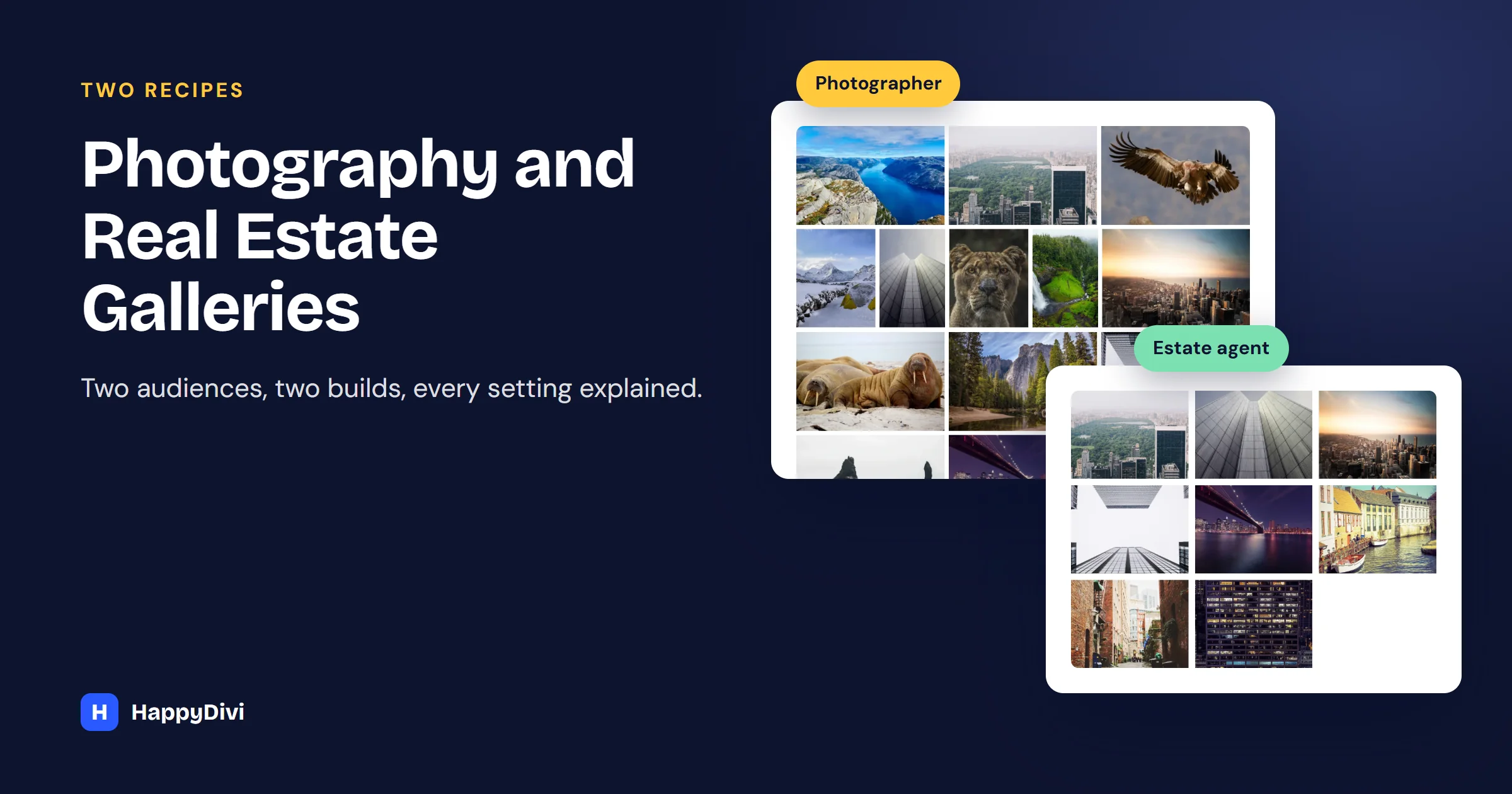
For a Divi photography gallery, use a Justified or Masonry layout so nothing is cropped, with a full-featured lightbox. For a real estate gallery, use an even 4:3 Grid so listings look tidy and buyers can compare them quickly.
Both audiences live or die by their images, but they want different things. A photographer wants each frame shown whole. An estate agent wants calm, consistent rows. Here is the exact recipe for each.
The Two Recipes Side by Side
| Setting | Photography | Real estate |
|---|---|---|
| Content Source | Media Library | Media Library, ACF field or Custom Post Type |
| Gallery Layout | Justified or Masonry | Grid, Landscape (4:3) |
| Lightbox tools | Thumbnails, zoom, fullscreen, info panel | Thumbnails, fullscreen |
| Download and Share | Download for proofing, Share for portfolios | Off |
| Loading Placeholder | Blur-Up | Skeleton |
| Pagination | Load More after about 20 photos | Load More on listing pages |
Recipe 1: A Divi Photography Gallery
1. Add Your Photos
Add a HappyDivi Gallery module. Keep Content Source on Media Library, select your photos under Gallery Images, and drag them into order.
2. Pick a Layout That Never Crops
Under Gallery Layout, choose Justified for even rows, which suits wedding, event and travel work. Set Target Row Height to around 230 px and Last Row Alignment to Stretch to Fill Width. Choose Masonry if you mix tall portraits and wide landscapes.
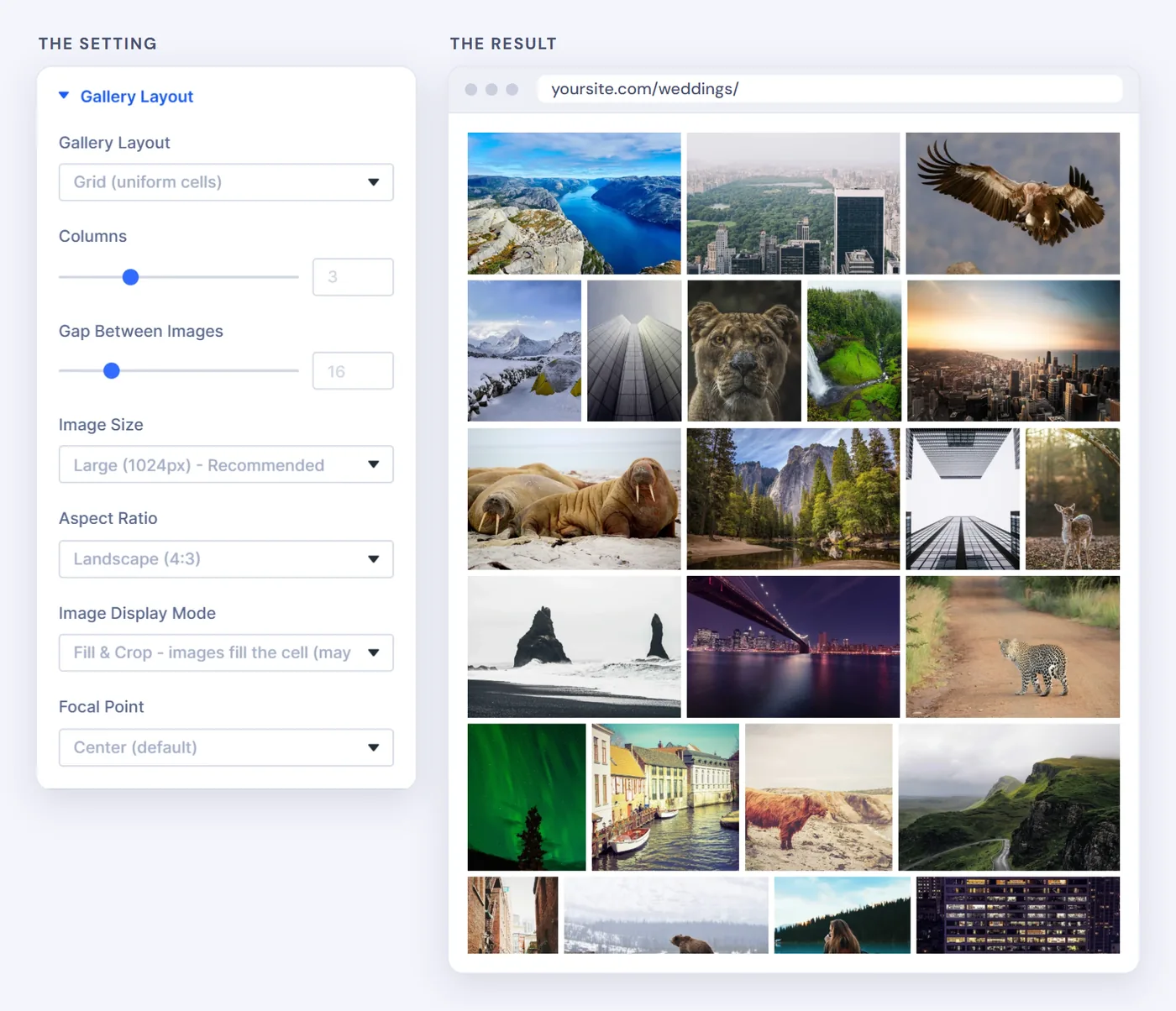
A Justified gallery: equal rows, and each photo keeps its shape.
3. Set Up the Lightbox
Under Click Action, keep Open in Lightbox and turn on Show Thumbnail Strip, Enable Image Zoom and Show Fullscreen Button. Show Info Panel can show the camera details stored in a photo. Keep Show Download Button for client proofing only.
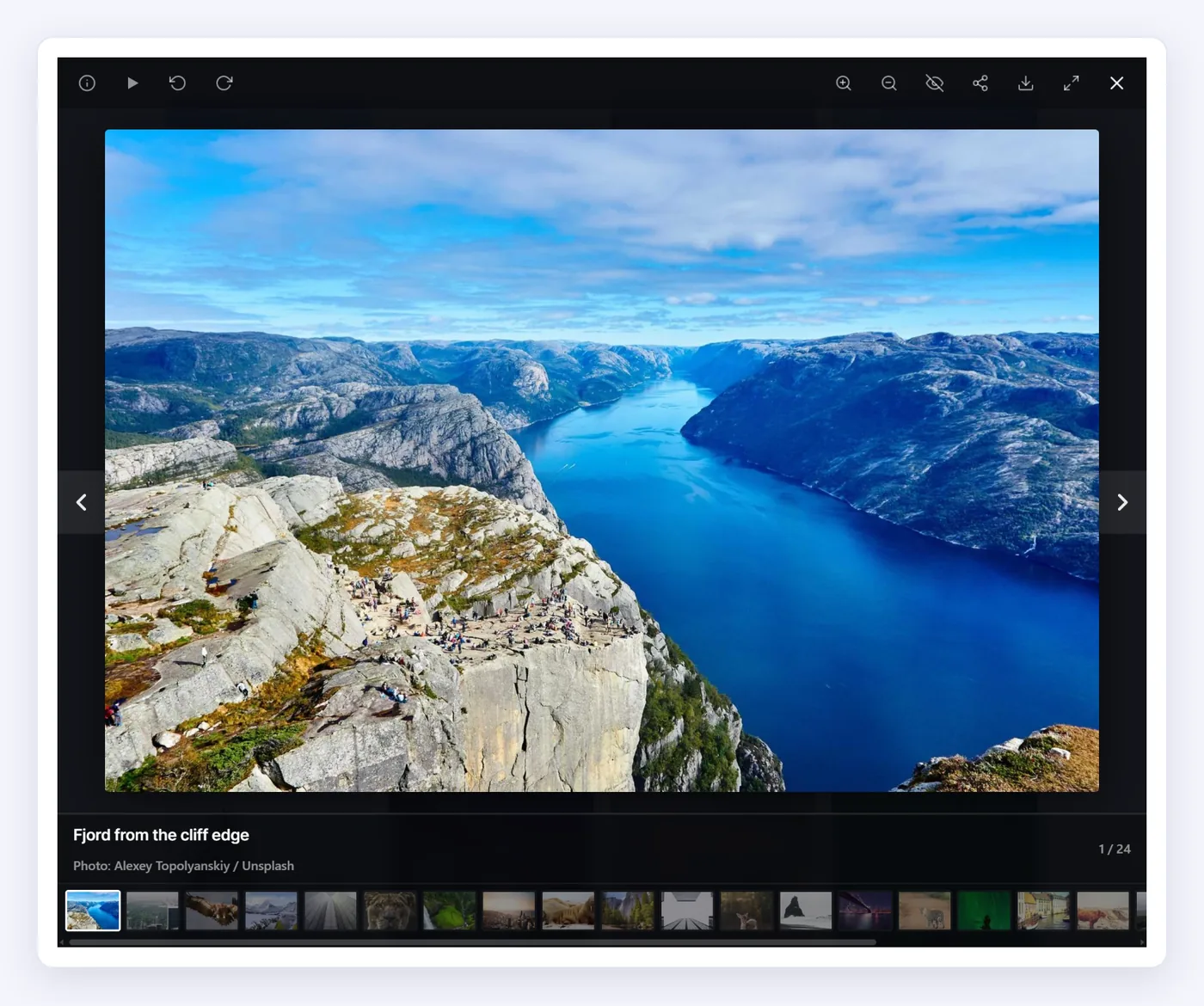
The lightbox, with the thumbnail strip along the bottom.
4. Loading
Under Lazy Loading, choose Blur-Up: a soft preview sharpens as each photo loads. For more than about 20 photos, add a Load More Button. See our pagination guide.
Export size
Export photos at around 2400 px on the long edge. That stays sharp in a fullscreen lightbox on most screens without making the files heavy, especially saved as WebP.
Recipe 2: A Divi Real Estate Gallery
1. Decide Where the Photos Live
For one property page, select photos from the Media Library. If agents add listings often, create a Properties post type so photos stay with each listing. The ACF Gallery field holds many photos per property, but it needs ACF Pro. See our ACF guide.
2. Make the Photos Even
Under Gallery Layout, choose Grid with Landscape (4:3): 3 columns on desktop, 2 on tablet, 1 on phone. Property photos are mostly landscape, so an even grid looks tidy and trustworthy.
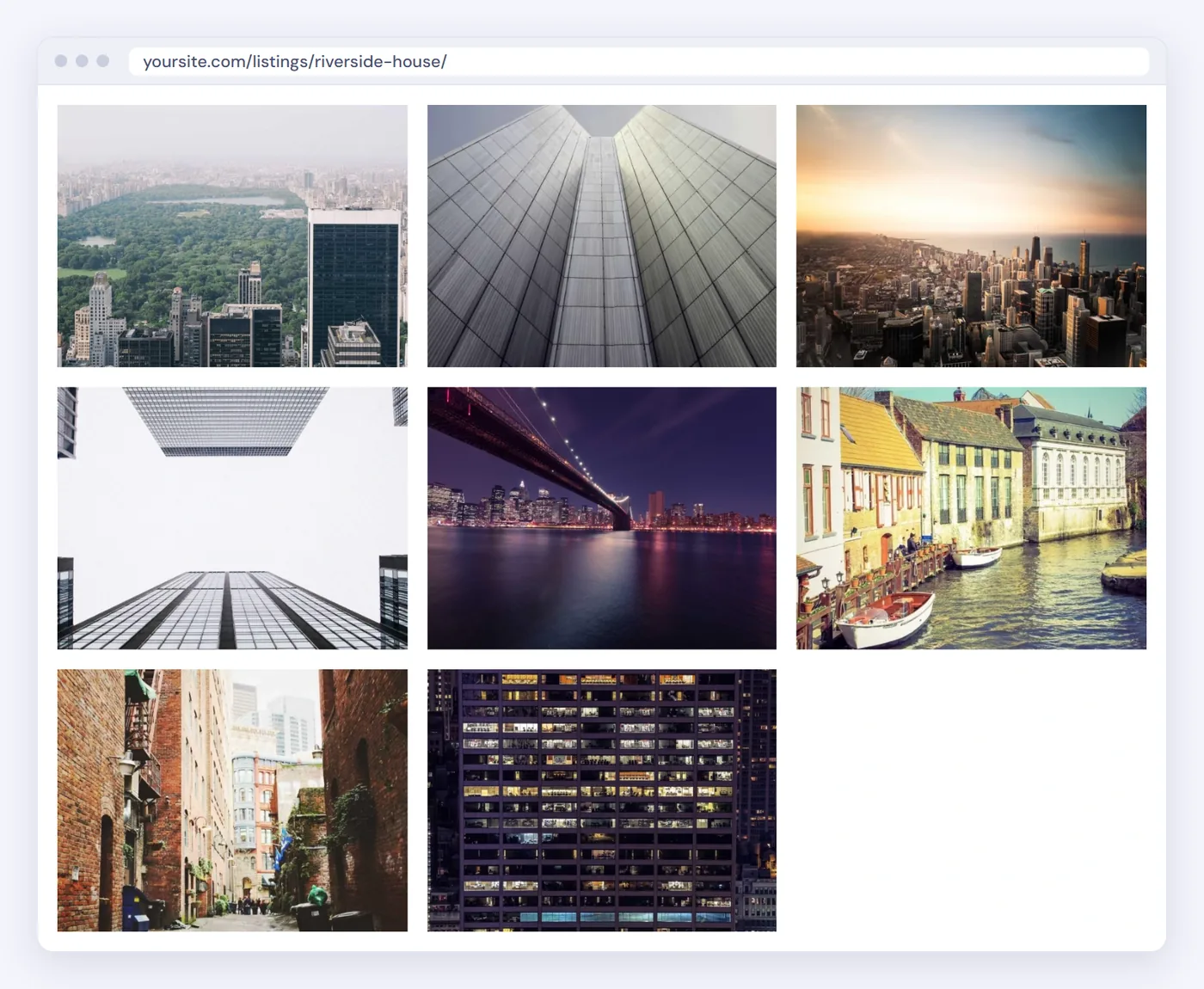
Even rows make a set of photos easy to scan.
3. Let Buyers Walk Through
Keep Open in Lightbox with Show Thumbnail Strip and Show Fullscreen Button on, so buyers can move through room by room. Leave Download and Share off for listings.
4. Build a Filterable Listings Page
For the overview, add another gallery with the Custom Post Type source set to Properties. Turn on Show Title, set the click action to Go to Post / Product URL, and turn on the Filter Bar with Save Filter in URL, so agents can send a link to one area. The full walkthrough is in our portfolio guide.
Frequently asked questions
What is the best gallery layout for photographers in Divi 5?
Justified or Masonry, because neither crops your photos. Choose Justified for even rows, and Masonry when you mix portrait and landscape shots.
Can visitors see camera settings for each photo?
Yes, if the photo still has that data. Turn on Show Info Panel in the lightbox. Note that some image optimizers strip EXIF data when compressing.
Why use Grid instead of Masonry for property photos?
Property photos are mostly landscape and buyers compare them quickly. An even 4:3 grid looks tidy, while Masonry is better when shapes vary.
Do I need code to show ACF photos in Divi 5?
No. Choose the ACF Image / Gallery Field source and pick the post type and field from dropdowns.
From HappyDivi
HappyDivi Gallery
One Divi 5 module for galleries from WooCommerce, custom post types and ACF fields.
- Grid, Masonry and Justified layouts
- Built-in lightbox
30-day money-back guarantee
Want the full picture? The Complete Divi 5 Gallery Guide covers every source, layout, lightbox, filter and pagination option.
From HappyDivi
HappyDivi Gallery
One Divi 5 module for galleries from WooCommerce, custom post types and ACF fields.
- Grid, Masonry and Justified layouts
- Built-in lightbox
30-day money-back guarantee