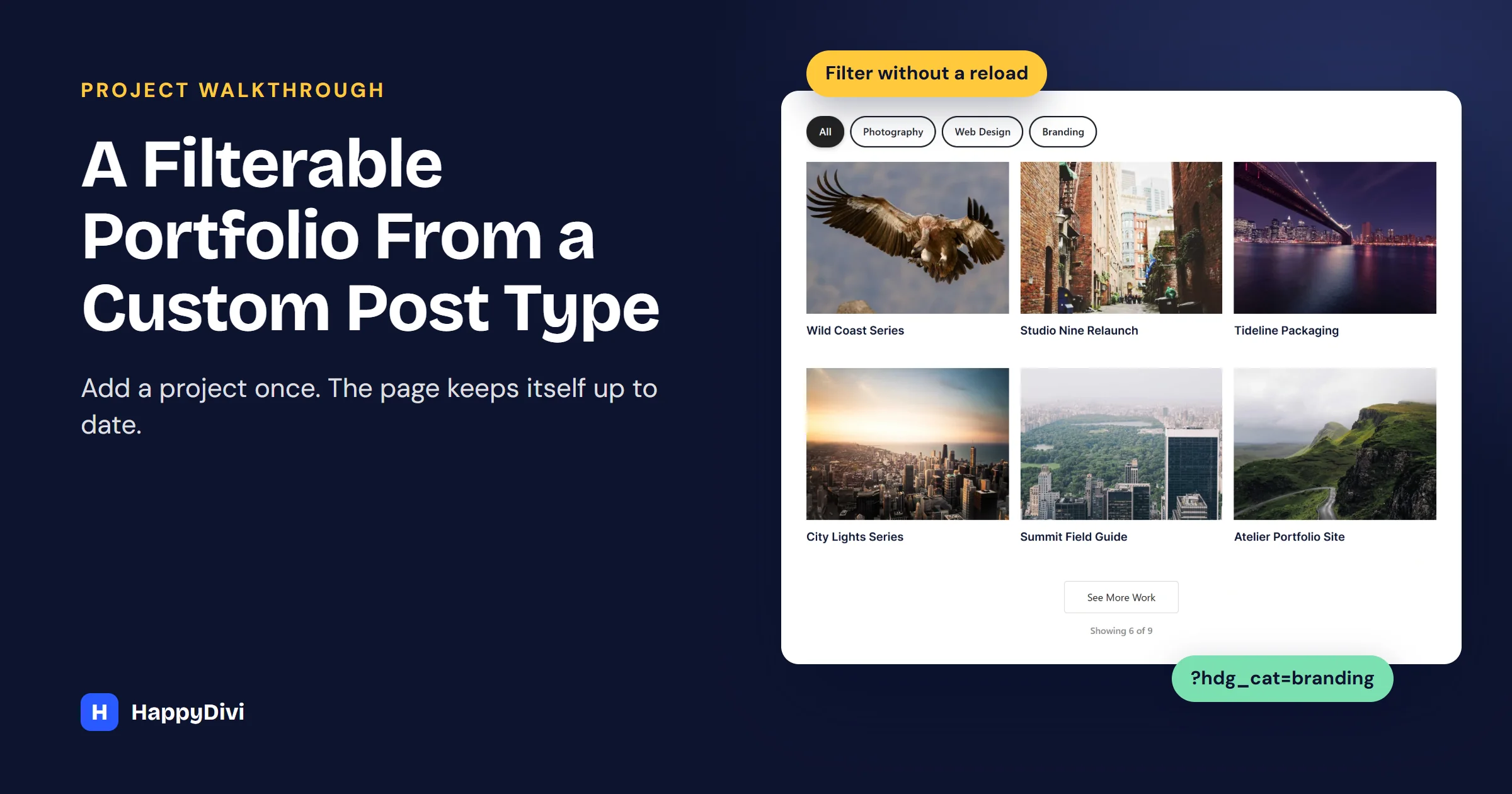
To build a Divi portfolio gallery from a custom post type, add HappyDivi Gallery, set Content Source to Custom Post Type, pick your post type, then turn on the filter bar and link each image to its project page. New projects then appear on their own.
Imagine a small design studio with 40 projects. Each new project currently means editing the portfolio page by hand, and when a prospect asks "do you do branding?", the owner sends a link to everything. Let us fix both problems, step by step.
Every screenshot comes from a real test site running Divi 5.15.1 and HappyDivi Gallery 1.0.25.
Why Not Use Divi's Own Modules?
Divi has good options, and they may be enough for you:
- Filterable Portfolio is great if your work lives in Divi's Projects post type.
- The Loop Builder in Divi 5 can repeat modules from any post type if you are happy to build the card and layout yourself.
HappyDivi Gallery is for when you want one module that handles any post type with the filter bar, shareable filter links, Load More and a choice of layouts already built.
Step 1: Put Your Projects in a Post Type
You have two choices. Use Divi's Projects, which already has categories, or register your own post type, such as Case Studies, with Advanced Custom Fields or Custom Post Type UI.
Whichever you pick, each project needs a featured image for the gallery and a category for the filter bar.
Step 2: Add the Gallery and Pick Your Post Type
In the Visual Builder, add a HappyDivi Gallery module. Under Image / Content Source:
- Set Content Source to Custom Post Type (featured images).
- Choose your Post Type. Our demo uses Project.
- Set Order By to Publish Date and Order Direction to Descending, so new work comes first.
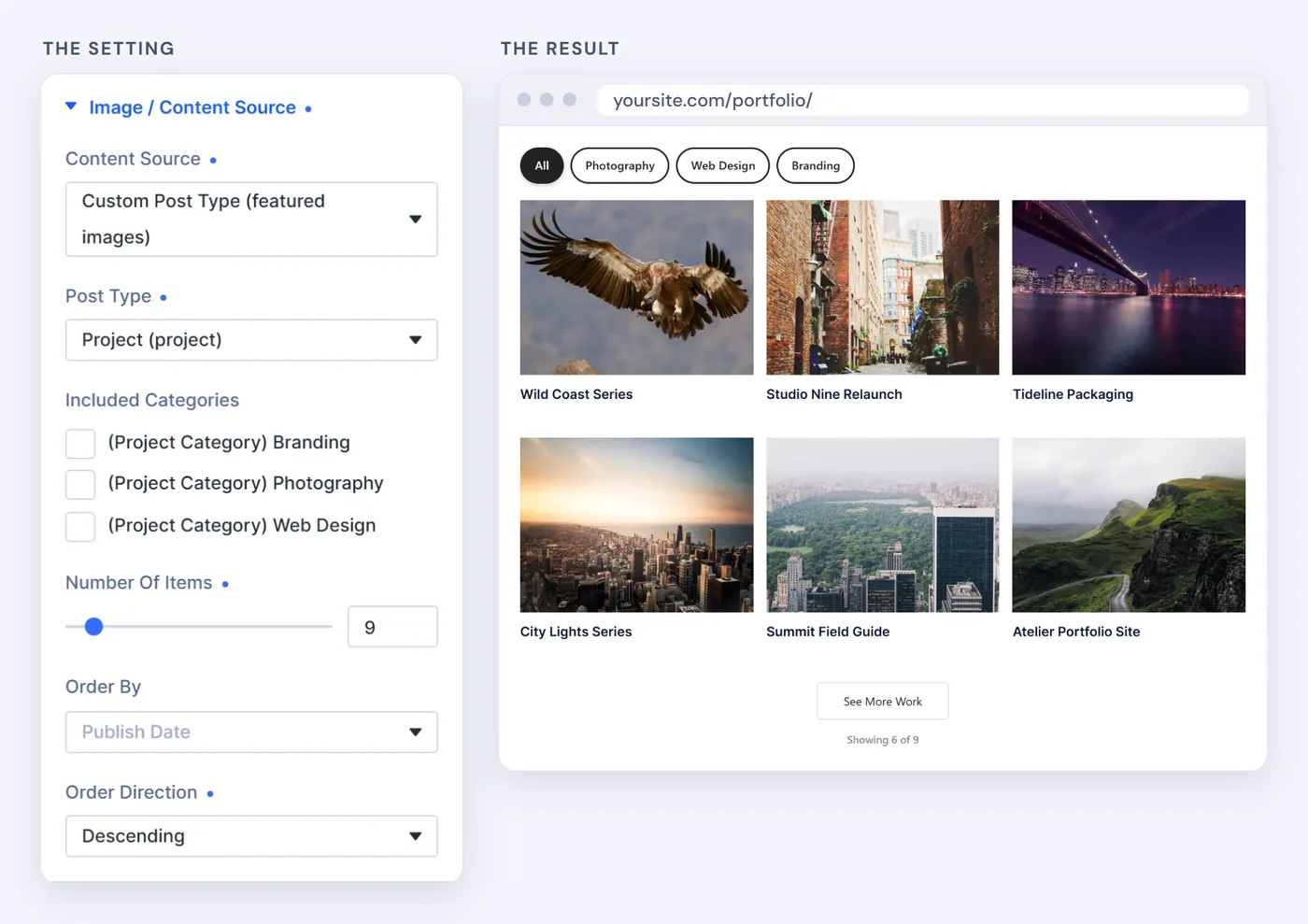
Pick the post type, and the preview fills with your real projects.
Want your best work first?
Order By offers Publish Date, Title and Random. To feature a project, adjust its publish date, or build a second gallery limited to a "Featured" category.
Step 3: Show Project Names and Link to Each Page
Open Caption, turn on Show Title and set Content Position to Below Image. Then open Click Action and set Image Click Action to Go to Post / Product URL.
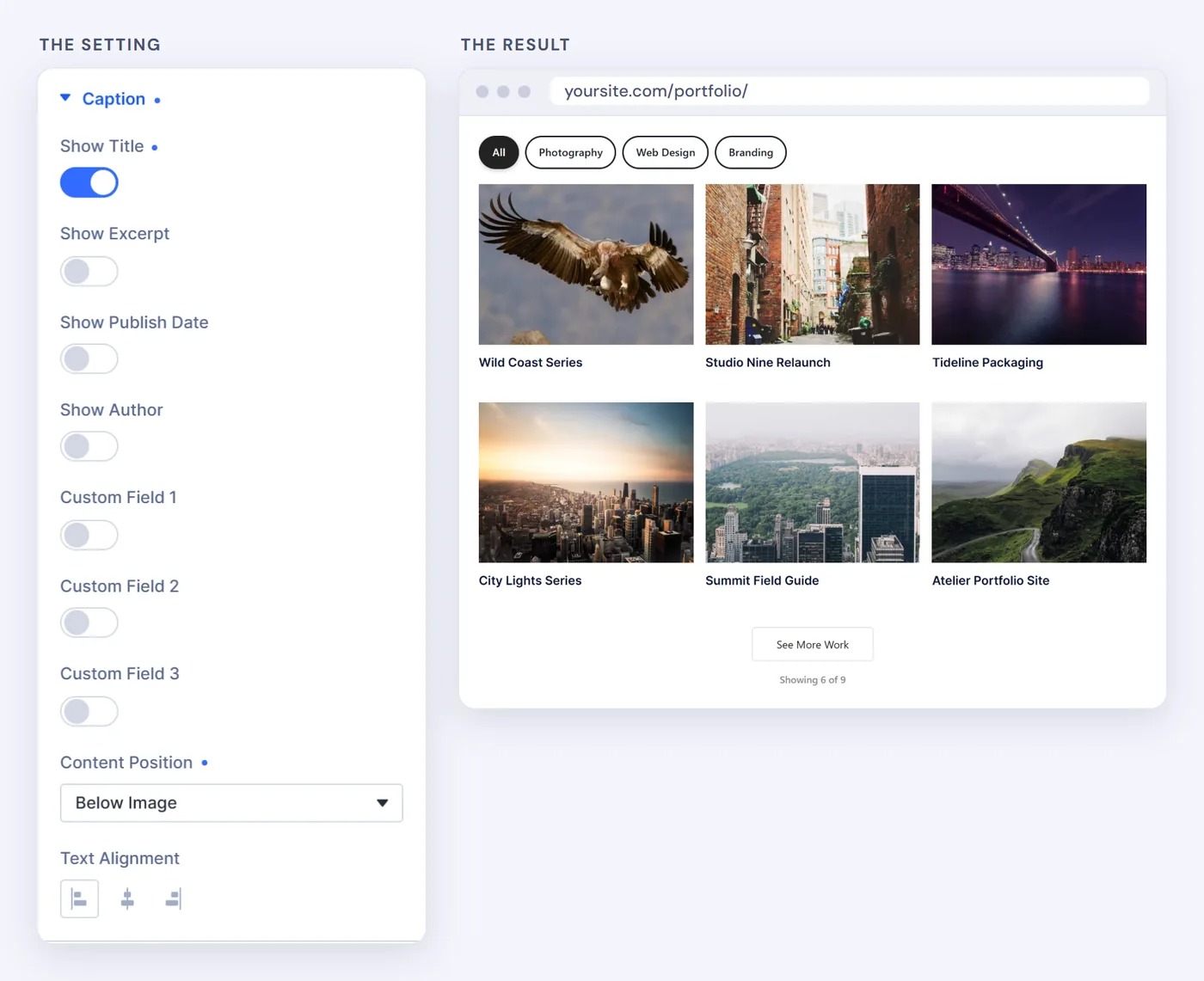
Titles below the image read clearly on any photo.
Step 4: Add the Filter Bar and Shareable Links
This is what answers "do you do branding?". Under Filter Bar:
- Turn on Enable Category Filter.
- Choose a Filter Bar Style: Pills, Tabs, Buttons or Dropdown.
- Turn on Save Filter in URL.
Now, when someone clicks Branding, the address changes to something like ?hdg_cat=branding. Anyone who opens that link lands on the portfolio with Branding already selected.
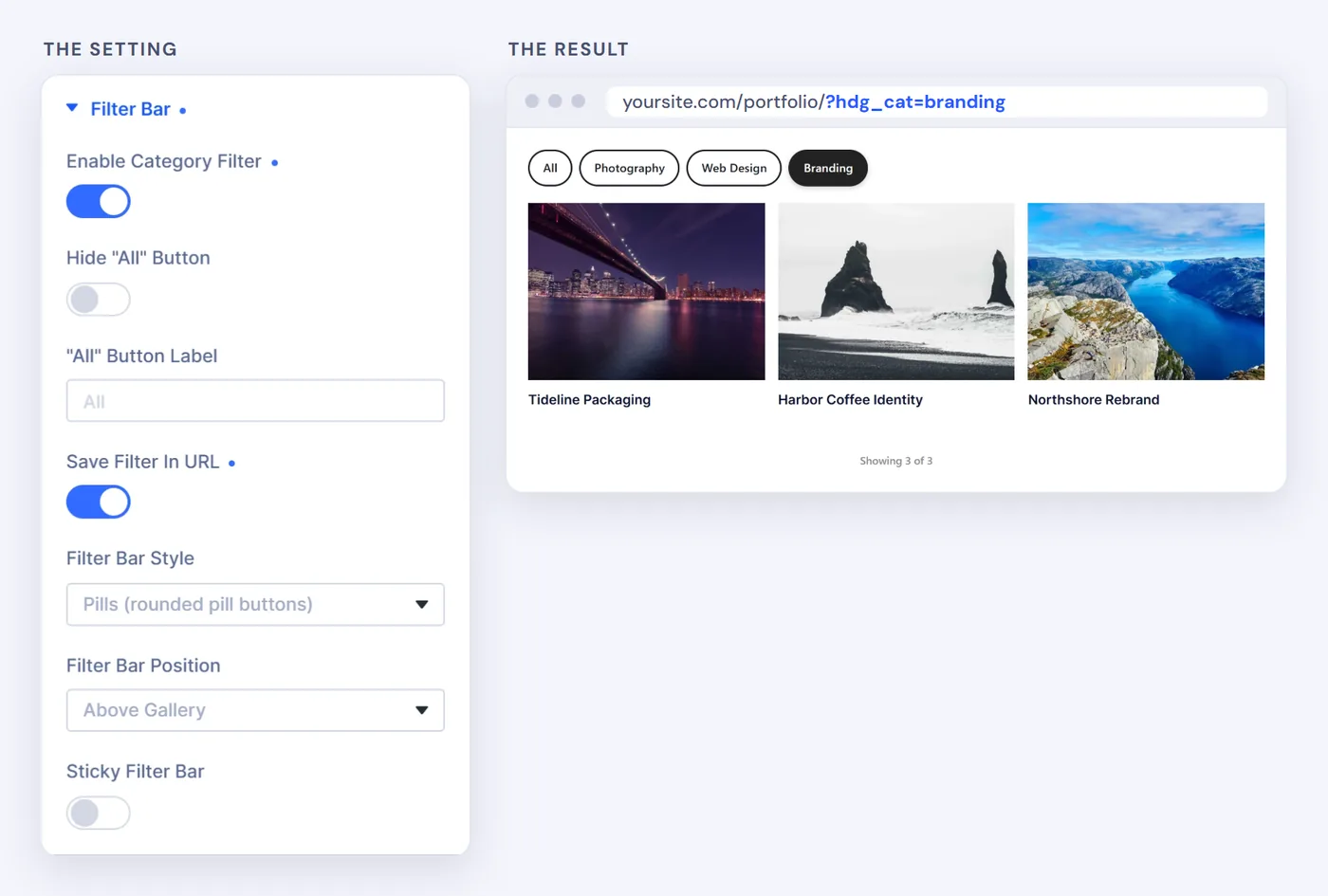
Our test: clicking Branding showed 3 of 9 projects and updated the URL.
Step 5: Add Load More
Forty projects should not load at once. Under Pagination, turn on Enable Pagination, set Pagination Type to Load More Button, Images Per Page to 12, and change Load More Button Text to something friendly, such as "See More Work". A button keeps your contact section easy to reach. Not sure? Read our gallery pagination guide.
The Finished Settings
| Group | Setting | Value |
|---|---|---|
| Image / Content Source | Content Source | Custom Post Type |
| Gallery Layout | Layout, Aspect Ratio | Grid, Landscape (4:3) |
| Caption | Show Title, Content Position | On, Below Image |
| Filter Bar | Style, Save Filter in URL | Pills, On |
| Pagination | Type, Images Per Page | Load More, 12 |
| Click Action | Image Click Action | Go to Post / Product URL |
If Something Looks Wrong
The Gallery Is Empty
Check that your items are published and have featured images, and clear Included Categories to test.
A Project Never Shows Under Its Filter
The project has no category assigned. Edit it and tick one.
A Shared Link Opens With No Filter
Turn on Save Filter in URL, then copy the link from the address bar after clicking the filter, rather than typing it.
Frequently asked questions
Can I build a filterable portfolio in Divi 5 without code?
Yes. With HappyDivi Gallery, you pick your post type and turn on the filter bar in the Visual Builder. There is no code, shortcode or template file to edit.
Can I use Divi's own Projects post type?
Yes. Choose Project under the Custom Post Type source and keep adding work the way you already do.
Do new projects appear automatically?
Yes. The gallery reads your post type when the page loads, so a newly published item with a featured image appears without editing the page. If you use page caching, clear it to see the change straight away.
Should a portfolio use Grid or Masonry?
Use Grid when each project should carry equal weight, which suits most agencies. Use Masonry when images vary in shape and cropping would hurt the work.
From HappyDivi
HappyDivi Gallery
One Divi 5 module for galleries from WooCommerce, custom post types and ACF fields.
- Grid, Masonry and Justified layouts
- Built-in lightbox
30-day money-back guarantee
Want the full picture? The Complete Divi 5 Gallery Guide covers every source, layout, lightbox, filter and pagination option.
From HappyDivi
HappyDivi Gallery
One Divi 5 module for galleries from WooCommerce, custom post types and ACF fields.
- Grid, Masonry and Justified layouts
- Built-in lightbox
30-day money-back guarantee