To add conditional logic to a Divi contact form, open the field that should appear or disappear, turn on Conditional Logic, and add a rule such as show this field when Type of Event is equal to Wedding. Repeat for each dependent field, then test the form on the live page.
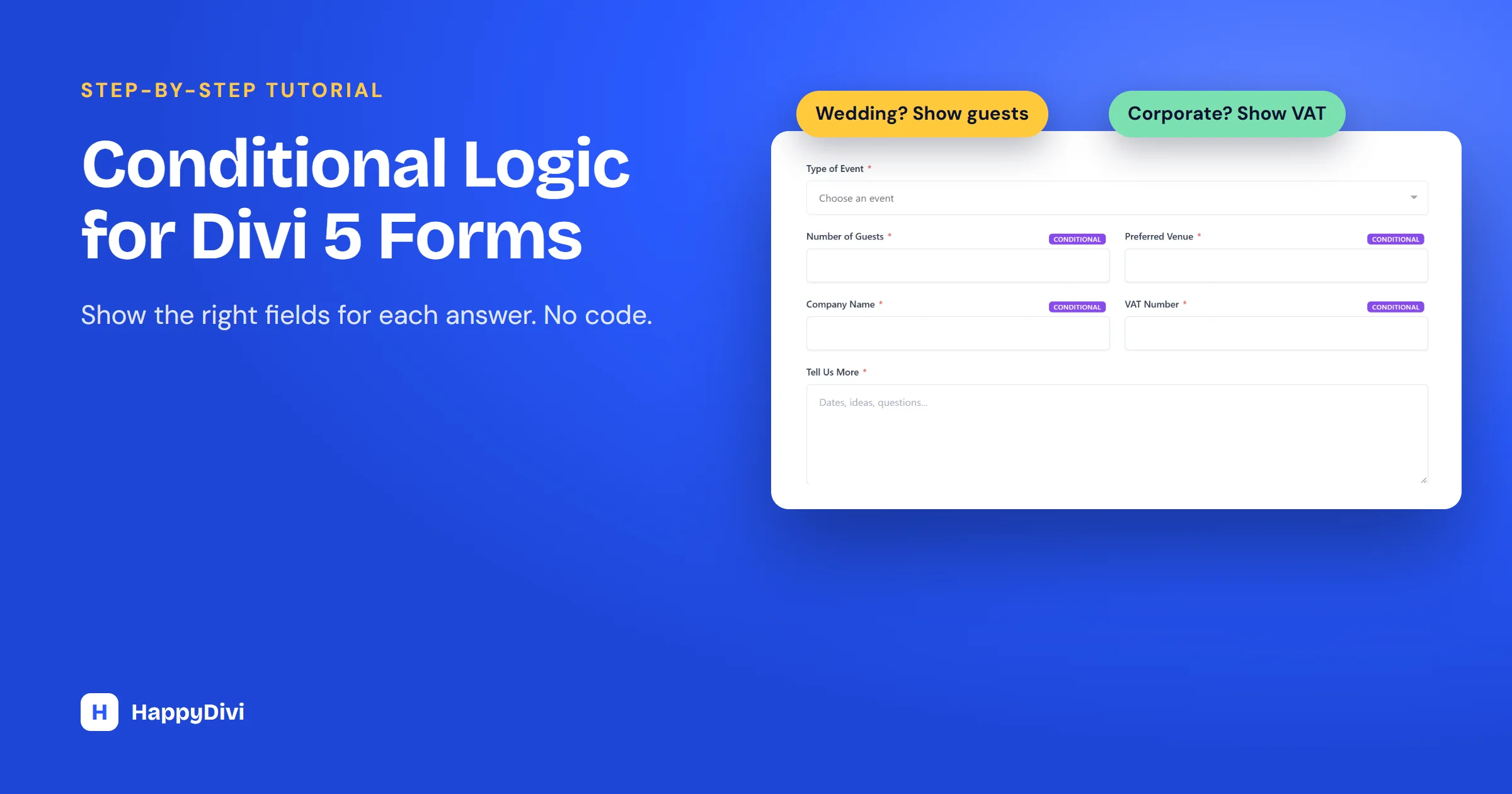
Long forms scare people off, and most visitors only need some of your fields. With conditional logic, someone planning a wedding sees guest count and venue, while someone booking a corporate event sees company name and VAT number. The form stays short and you still get the details you need.
This guide builds that exact form in the Divi 5 Visual Builder with HappyDivi Form, a native form module where showing and hiding fields is free. Every screenshot comes from a real test form on Divi 5.15.1 and HappyDivi Form 1.0.4.
Do You Need a Plugin for This?
Not always. Divi 5's own Contact Form module already has conditional logic, with match-all or match-any rules. If you only need to show and hide a few fields, and an email is all you need from each submission, it may be enough.
A dedicated form module earns its place when you also want every submission saved in WordPress, or the rest of the form to react to answers: different recipients, different thank-you messages, different email text. The comparison table below shows the differences.
Step 1: Add the Form and a Trigger Field
Add a HappyDivi Form module to your page in the Visual Builder. You can start from a blank form or import a ready-made template.
Then add the field that decides what comes next. This is your trigger field, and it is usually a Select Dropdown or Radio Buttons field. For our example:
- Add a field and set Field Type to Select Dropdown.
- Set Field Label to Type of Event and Field ID to
event_type. - Open the Select Options group and add Wedding, Corporate and Birthday.
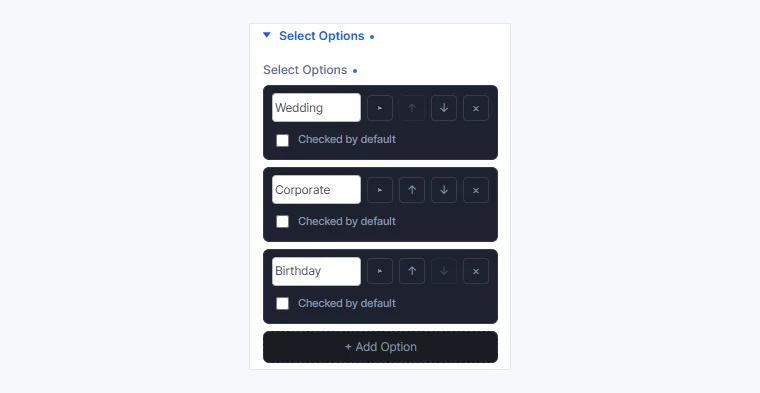
The trigger field's choices are set in the Select Options group.
Pro tip
Keep the trigger field near the top of the form. Visitors make the big choice first, and everything after it is already tailored to them.
Step 2: Add the Fields That Depend on It
Now add the fields only some visitors need. Our form has four: Number of Guests and Preferred Venue for weddings, and Company Name and VAT Number for corporate events.
Give every field a unique Field ID. Rules can only point at fields that have one, and only at fields inside the same form.
Step 3: Add a Rule to Each Dependent Field
Open a dependent field, such as Number of Guests, and go to Content tab → Conditional Logic. Then:
- Turn on Enable.
- Set Action to Show this field. You can choose Hide this field instead.
- Leave Match on Any rule if you have one rule.
- Under Rules, pick event_type: Type of Event, then is equal to, then Wedding.
Repeat for each dependent field. The two corporate fields use the same rule with Corporate as the value.
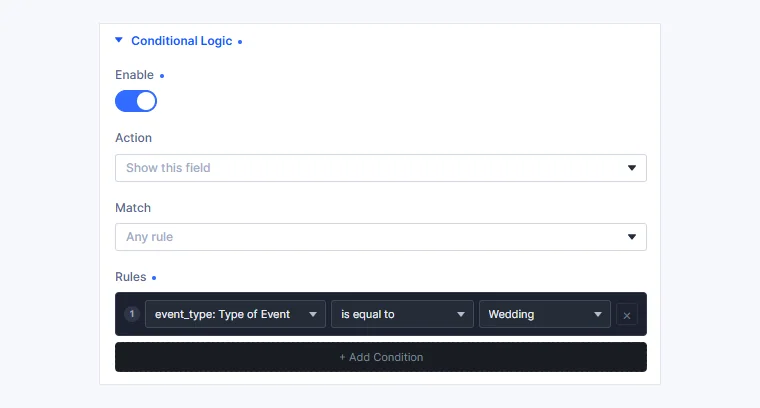
A complete rule: show this field when Type of Event is equal to Wedding.
Tip
The Rules row is tight at the default panel width, and its values get cut off. Drag the edge of the settings sidebar to widen it and you can read the whole rule.
Step 4: Check the Form in the Builder
The Visual Builder keeps every field on screen so you can still edit it. Fields with rules show a purple CONDITIONAL badge instead of disappearing, so seeing them all here is normal.
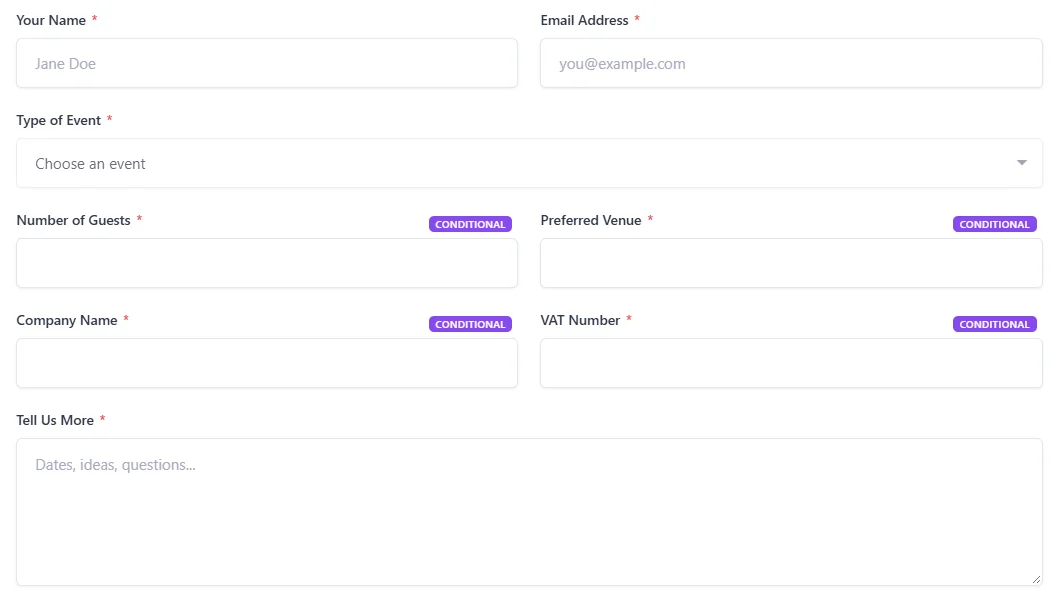
In the builder, the CONDITIONAL badge marks each field that has a rule.
Step 5: Test Every Path on the Live Page
Save the page and open it in a new tab, because the show and hide behavior runs on the real page. Choose each answer in turn and check the right fields appear.
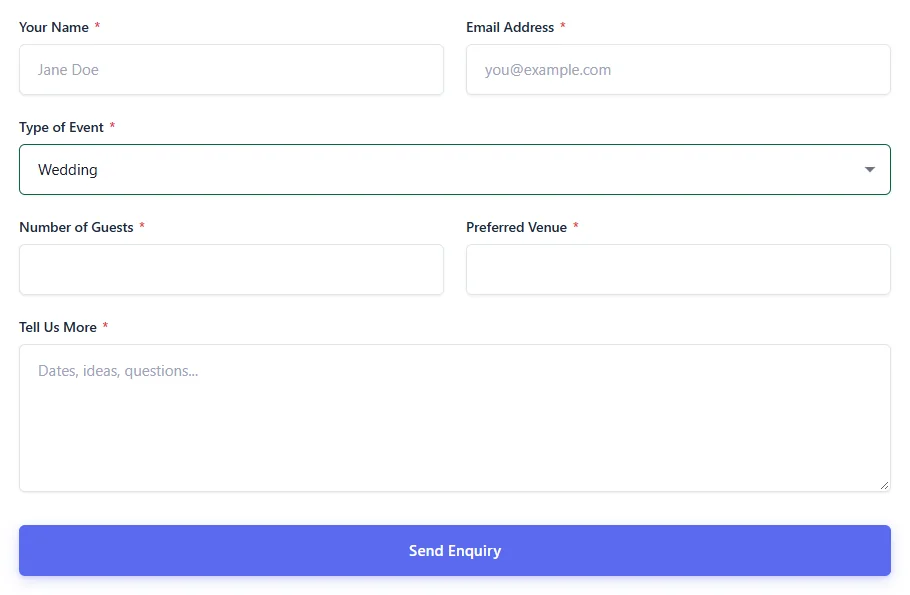
Choosing Wedding reveals Number of Guests and Preferred Venue.
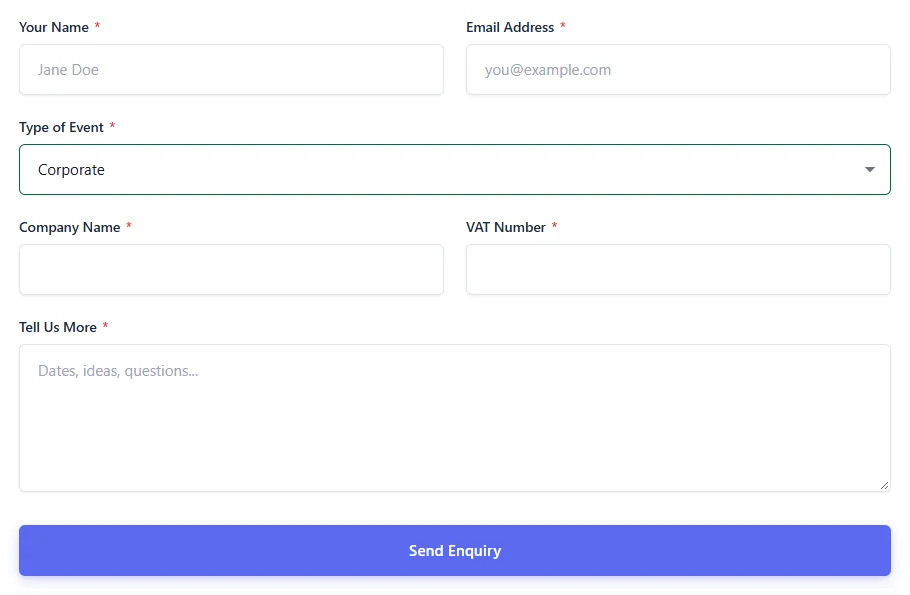
Choosing Corporate swaps them for Company Name and VAT Number.
Then submit one test entry per path and open it under HappyDivi Form → Entries. We submitted a Birthday enquiry, which has no extra fields. It went through even though all four hidden fields were marked required, and the entry saved only the fields the visitor could see.

The saved entry contains only the fields the visitor could see.
All 10 Rule Conditions
Each rule compares another field's answer using one of these conditions:
| Condition | Use it for |
|---|---|
| is equal to | An exact answer, such as Wedding |
| is not equal to | Every answer except one |
| contains | Part of an answer, such as a word in a text field |
| does not contain | Answers without a given word |
| starts with | Codes or prefixes |
| ends with | Endings, such as an email domain |
| is empty | A field the visitor skipped |
| is not empty | A field the visitor filled in |
| is greater than | Numeric fields only, such as guests over 50 |
| is less than | Numeric fields only, such as budgets under 1,000 |
When a field has several rules, Any rule shows it when one rule passes, and All rules needs every rule to pass. Rules also work with checkbox groups and multi-select fields, where each selected value is checked.
What Happens After the Form Is Sent
Field rules decide what visitors see while they fill in the form. HappyDivi Form can also change what happens afterwards.
Free:
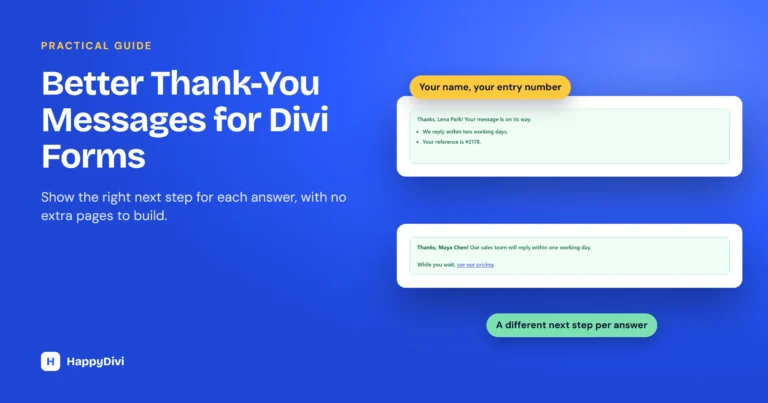
- Merge tags: reuse answers in your text. With our form,
Thanks %%field_your_name%%!greets the visitor by name. - A formatted success message: use links, bold text and lists, not only plain text.
- A choice of success action: show a message, redirect to a page, or show a message and then redirect.
Pro:
- Conditional notifications: add as many notification emails per form as you need, each with its own recipient and conditions. Send Sales enquiries to Sales and Technical ones to Support.
- Success Rules: show a different message or redirect depending on the answers, such as a booking link only for wedding enquiries. The first matching rule wins.
- Conditional content: write
{{if event_type is "Wedding"}}...{{else}}...{{/if}}inside email subjects, email bodies or success messages.
Divi Contact Form vs HappyDivi Form
| Feature | Divi Contact Form | HappyDivi Form Free | HappyDivi Form Pro |
|---|---|---|---|
| Show or hide fields | Yes | Yes | Yes |
| Match any or all rules | Yes | Yes | Yes |
| Rules checked on the server | Yes | Yes | Yes |
| Starts with and ends with conditions | No | Yes | Yes |
| Entries saved in WordPress | No | Yes | Yes |
| Conditional notification emails | No | No | Yes |
| Different success message per answer | No | No | Yes |
We checked Divi's column against the Divi 5.15.1 code. Divi can also change, so check its current release if this decision matters for your project.
Four Conditional Forms Worth Building
- Department contact form: "What is this about?" shows order number for Orders, website URL for Support and budget for Sales.
- Event registration: "Will you attend the dinner?" reveals meal choice and dietary needs only for people who say yes.
- Quote calculator (Pro): choosing a package reveals its add-ons, and a Calculated field shows the running total. Add Stripe and the visitor can pay a deposit: see Stripe payments with a Divi form.
- Job application (Pro): the chosen role reveals the questions for that role and a file upload for a portfolio.
Conditional Logic Not Working? Check These
The Field I Want Is Not in the Rule Dropdown
The field needs a unique, non-empty Field ID and must be in the same form. Check its Field Settings group.
All My Fields Show in the Builder
This is expected. The builder keeps them visible and marks them with a badge. Test on the live page.
The Field Never Appears on the Live Page
Check that Enable is on and that the rule's value matches the option's text. If you renamed an option after writing the rule, pick the value again. Also check Match: with All rules, a single failing rule keeps the field hidden.
A Greater Than Rule Is Missing
Is greater than and is less than are only offered when the rule points at a numeric field.
Frequently asked questions
Does the Divi Contact Form module have conditional logic?
Yes. Divi's own module can show and hide fields with match-any or match-all rules. It does not save submissions in WordPress, and it does not offer conditional notifications or per-answer success messages.
Is conditional logic free in HappyDivi Form?
Yes. Showing and hiding fields with rules is in the free version. Conditional notifications, Success Rules and conditional email content are Pro features.
Will a hidden required field stop the form from sending?
No. Hidden fields are left out of validation, so a required field only counts when the visitor can see it. We tested this by submitting a form with four hidden required fields empty, and it went through.
Can someone force a hidden field through by editing the page?
HappyDivi Form runs the same rules again on the server when the form is submitted, and hidden fields are not saved, so changing the page in the browser does not add them to the entry.
Why do all my conditional fields show in the Visual Builder?
The builder keeps them visible so you can edit them, and marks each one with a CONDITIONAL badge. Open the saved page to see them show and hide.
From HappyDivi
HappyDivi Form
Saves every entry inside WordPress, so a lead never depends on an email arriving.
- 22 field types, multi-step forms and conditional logic
- Native Divi 5 module
Free plan available
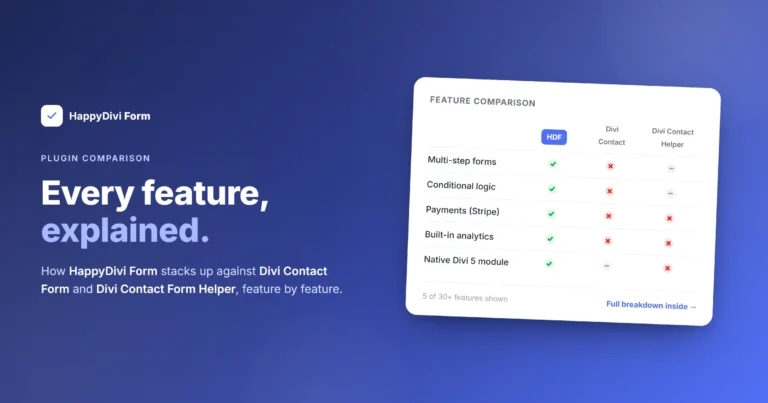
Comparing options? Read HappyDivi Form vs Divi Contact Form and Contact Form Helper.
From HappyDivi
HappyDivi Form
Saves every entry inside WordPress, so a lead never depends on an email arriving.
- 22 field types, multi-step forms and conditional logic
- Native Divi 5 module
Free plan available