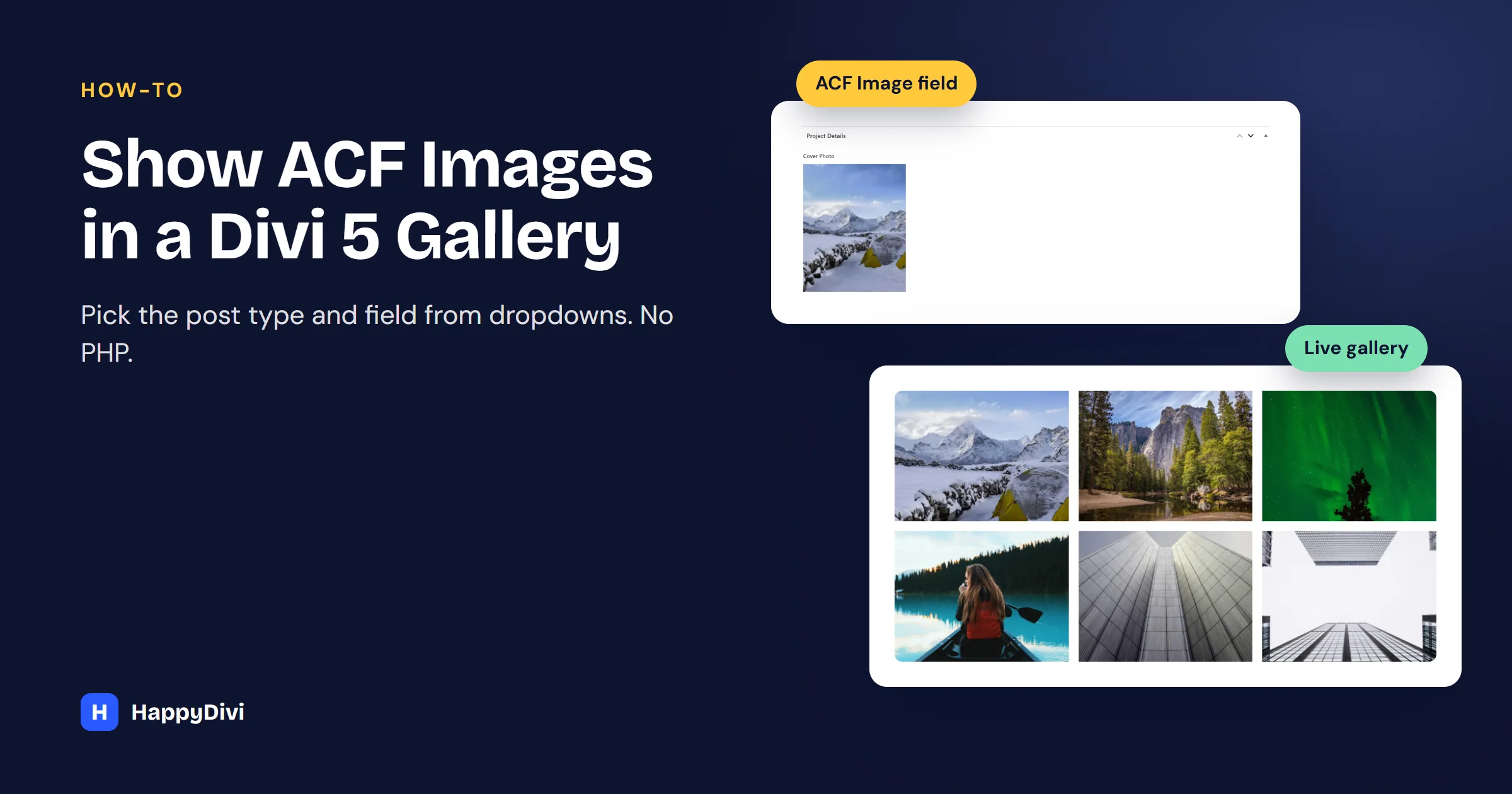
To build a Divi ACF gallery without code, add HappyDivi Gallery, set Content Source to ACF Image / Gallery Field, then choose your post type and field name from the dropdowns. The gallery follows the field automatically.
Advanced Custom Fields keeps content tidy: a cover photo on each project, a headshot on each team member. Showing those images well is the hard part. Usually it means a custom template, but it does not have to.
Which ACF Field Do You Need?
| Field | Holds | Available in | Good for |
|---|---|---|---|
| Image | One image per post | ACF free | Team headshots, project covers, logos |
| Gallery | Many images per post | ACF Pro | Property photos, case study screenshots |
What we tested
We built this guide with the free ACF plugin and an Image field. HappyDivi Gallery also lists Gallery fields in the same dropdown, but we did not test one for this article because that field needs ACF Pro.
Only need one image?
Divi's own Dynamic Content can place a single ACF image into an Image module without any plugin. HappyDivi Gallery is for showing images from many posts or fields as a laid-out gallery.
Step 1: Create Your ACF Field
Go to ACF → Field Groups and add a new group. Our demo calls it Project Details.
- Add a field and set Field Type to Image.
- Give it a clear name. Ours is
cover_photo. - Under Location Rules, show it on your post type, such as Project.
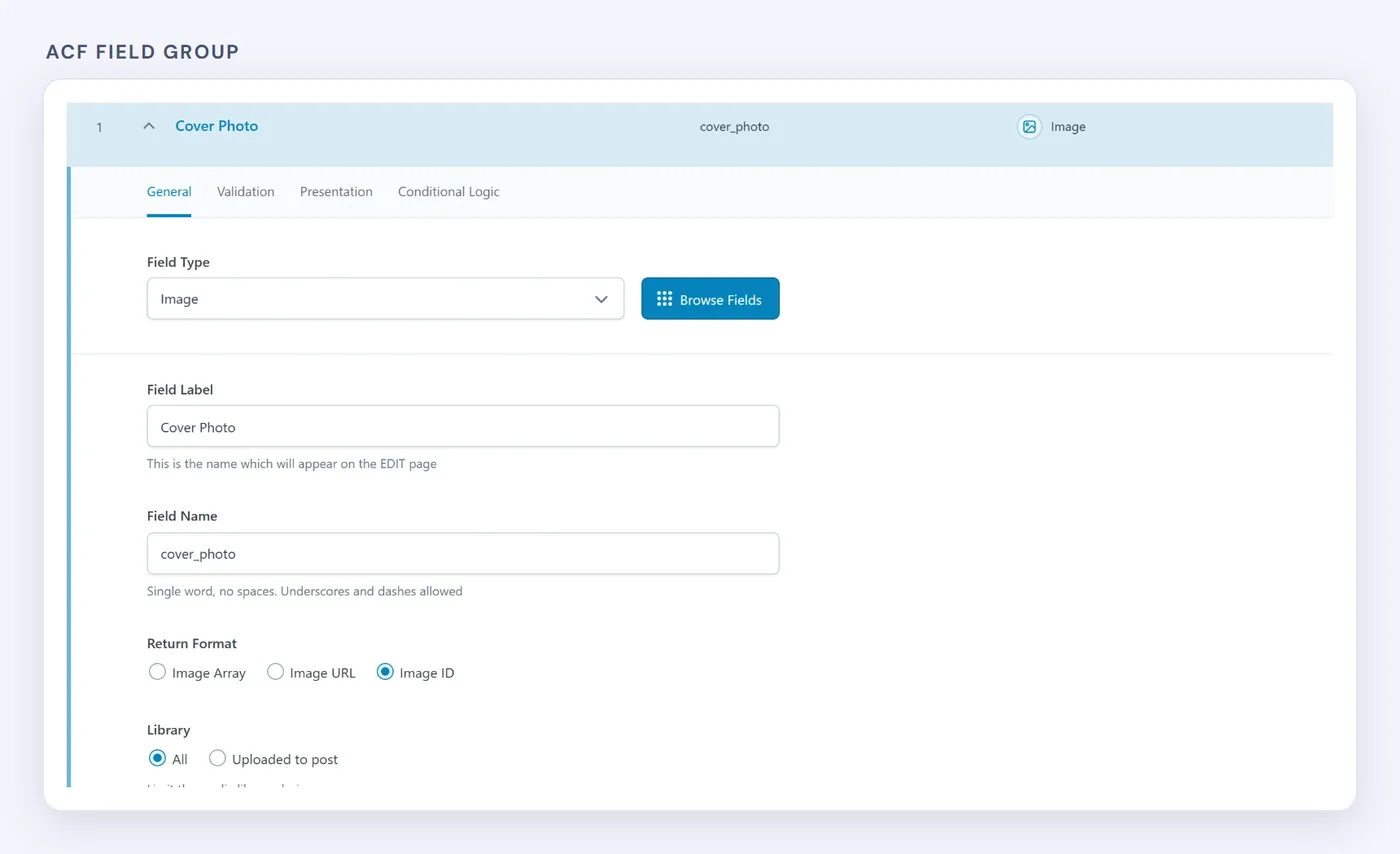
A simple Image field in the free ACF plugin.
Step 2: Add Images to Your Posts
Open a few posts of that type and upload an image into the new field. Add a title and alt text in the Media Library as you go, because good alt text helps accessibility and image search.
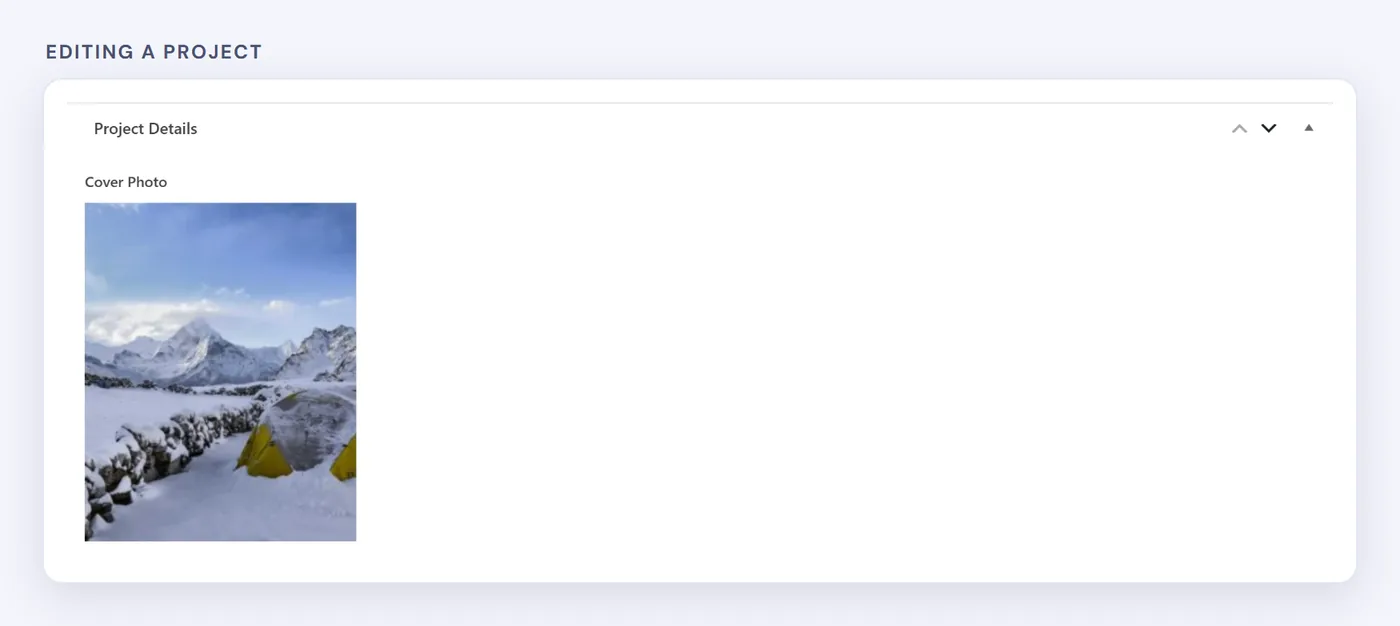
Our new field, on a demo project.
Step 3: Connect the Field in Divi
Add a HappyDivi Gallery module. Under Image / Content Source:
- Set Content Source to ACF Image / Gallery Field.
- Set Query Post Type to your post type.
- Choose your field under ACF Image / Gallery Field.
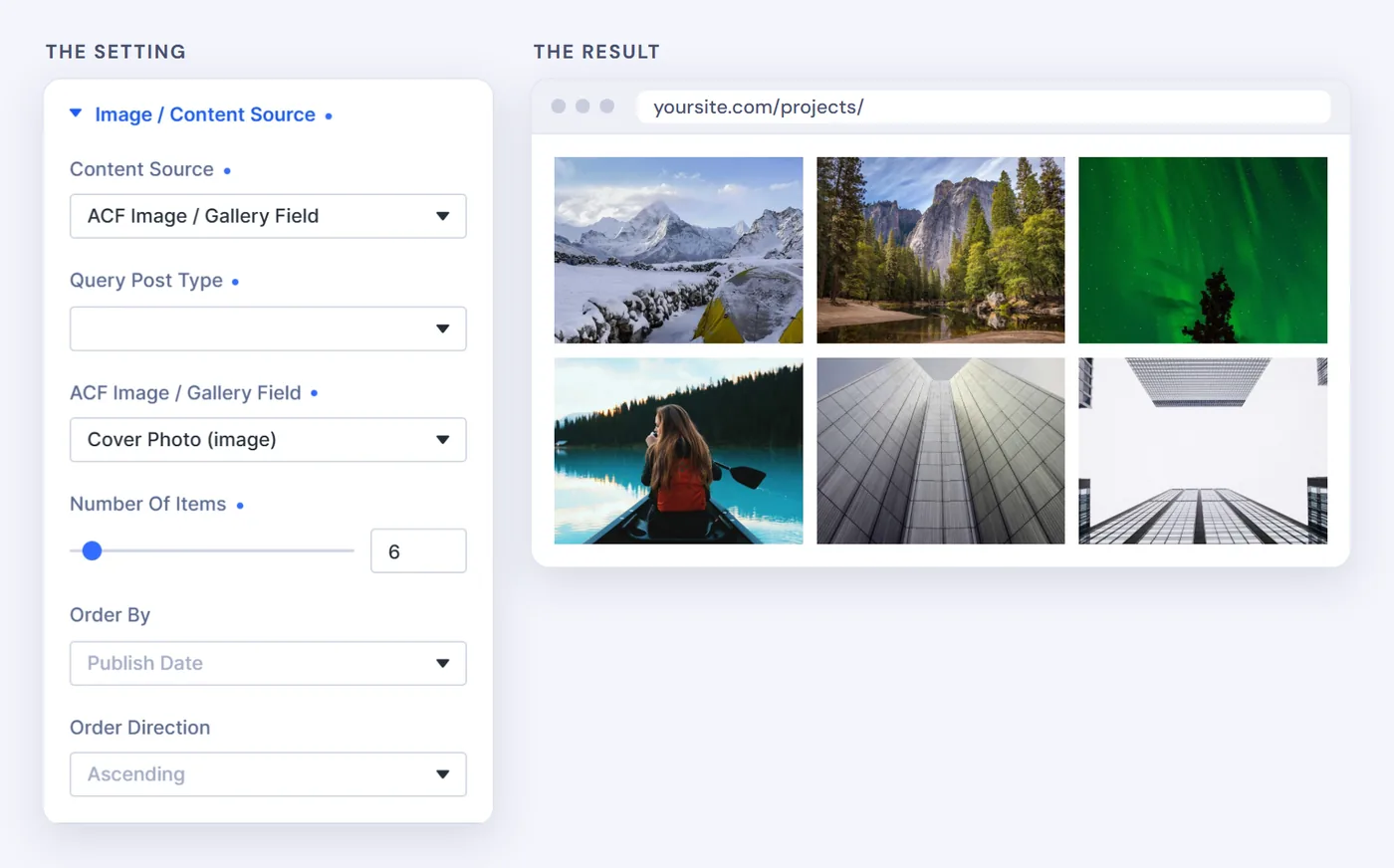
Three dropdowns, and the gallery shows the images from your field.
Step 4: Choose a Layout and Lightbox
From here, everything works as it does for any gallery. For most uses, choose Grid with Landscape (4:3), or Portrait (3:4) for headshots. Under Click Action, keep Open in Lightbox. For long sets, turn on pagination.
Common Problems
My Field Is Not in the Dropdown
Check ACF is active, the field type is Image or Gallery, and Query Post Type matches its Location Rules.
The Gallery Shows No Images
The field exists but is empty. Add images to a few posts and reload the builder.
The Gallery Field Type Is Missing in ACF
It is an ACF Pro feature. You can use one Image field per post instead.
Frequently asked questions
Do I need PHP to show ACF images in Divi 5?
No. With HappyDivi Gallery, you pick the post type and field from dropdowns. No template, query or shortcode is needed.
Does it work with the free version of ACF?
Yes, with Image fields. That is how we built this guide. The Gallery field, which holds many images per post, requires ACF Pro.
Can I use the lightbox with ACF images?
Yes. Layouts, the lightbox and pagination are available with the ACF source just as with other sources.
From HappyDivi
HappyDivi Gallery
One Divi 5 module for galleries from WooCommerce, custom post types and ACF fields.
- Grid, Masonry and Justified layouts
- Built-in lightbox
30-day money-back guarantee
Want the full picture? The Complete Divi 5 Gallery Guide covers every source, layout, lightbox, filter and pagination option.
From HappyDivi
HappyDivi Gallery
One Divi 5 module for galleries from WooCommerce, custom post types and ACF fields.
- Grid, Masonry and Justified layouts
- Built-in lightbox
30-day money-back guarantee