To build a dynamic Divi blog post gallery, add HappyDivi Gallery, set Content Source to Posts (featured images), choose the Masonry layout, show titles below each image and link them to the post. New posts then appear on their own.
Every post already has a picture, a title and a link. This recipe turns them into a visual feed, which suits travel, recipe, design and lifestyle blogs where the images do the selling.
The Recipe at a Glance
| Setting | Value |
|---|---|
| Content Source | Posts (featured images) |
| Order By, Direction | Publish Date, Descending |
| Gallery Layout | Masonry (Pinterest style) |
| Columns, Gap | 3, 16 px |
| Show Title, Content Position | On, Below Image |
| Image Click Action | Go to Post / Product URL |
| Pagination Type, Images Per Page | Infinite Scroll or Load More, 12 |
Step 1: Choose Your Posts
Add a HappyDivi Gallery module to your blog page. Under Image / Content Source, set Content Source to Posts (featured images). Leave Included Categories empty for all posts, or tick some to build a topic page, such as Desserts on a recipe blog.
Step 2: Pick a Layout
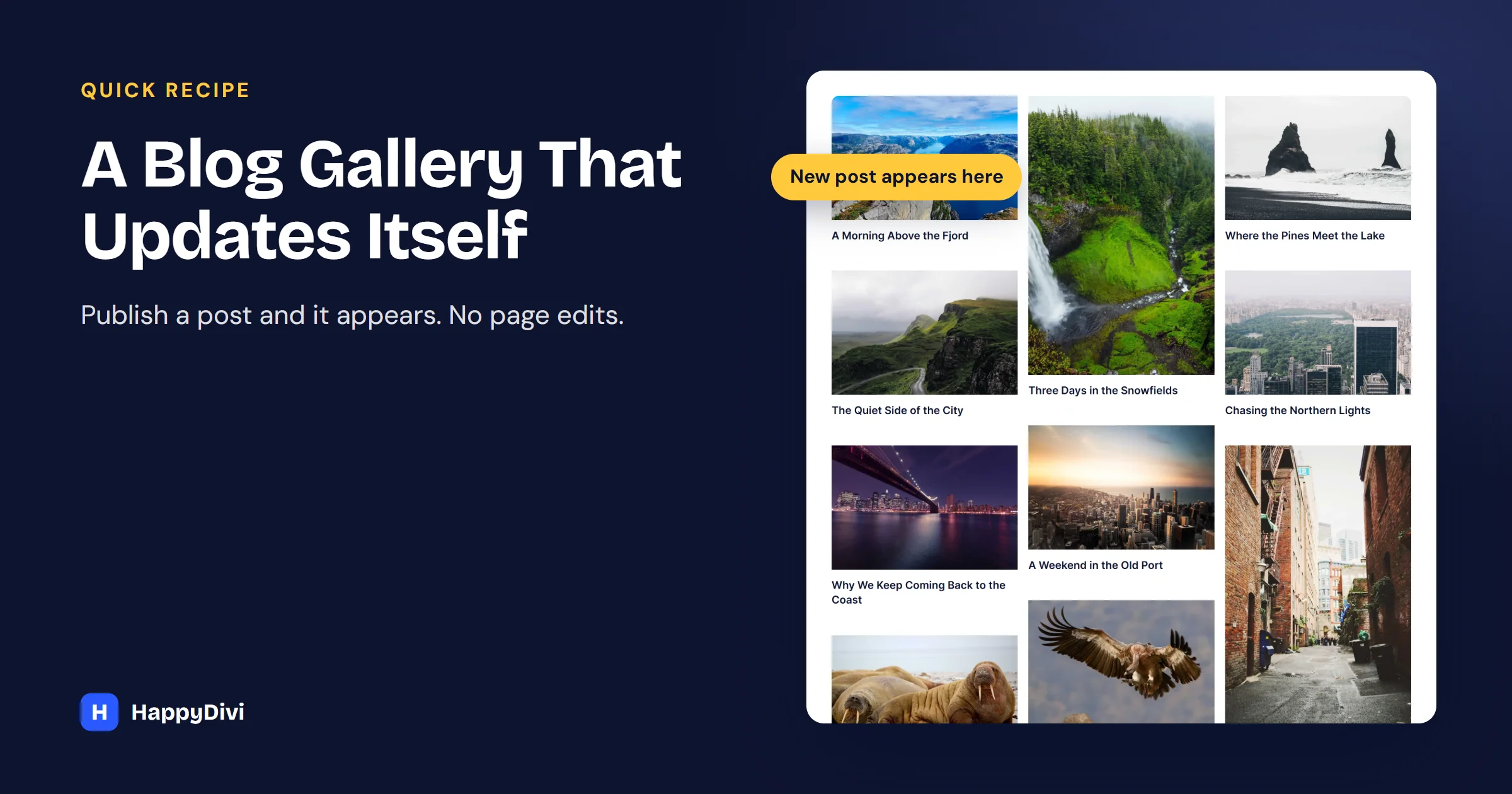
Under Gallery Layout, choose Masonry if your images come in different shapes. Each one keeps its own height, which gives you that magazine feel. Choose Grid with a Wide (16:9) ratio if you prefer tidy rows.
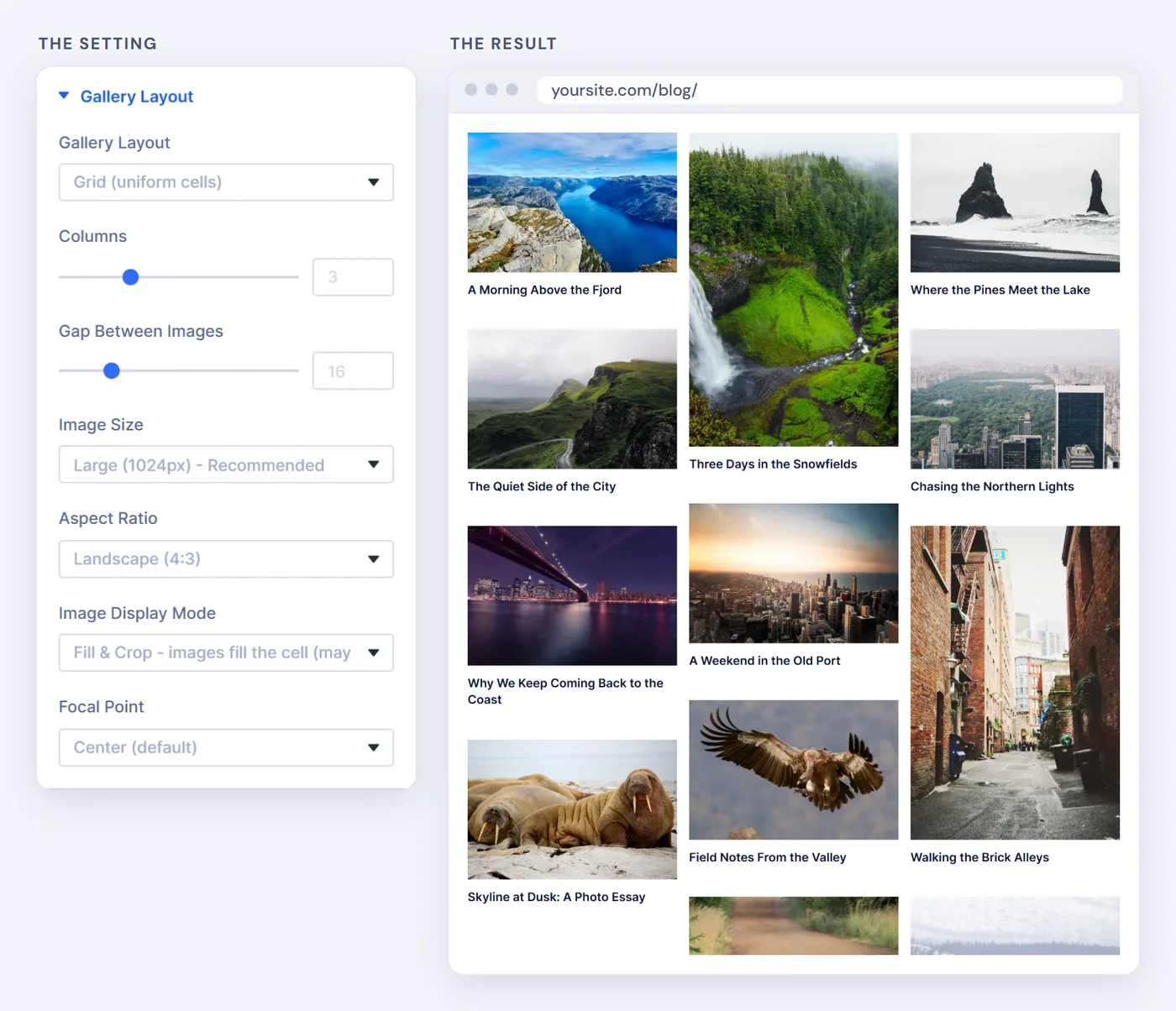
Our demo travel blog, built with these exact settings.
For every Masonry option, see our Divi 5 Masonry gallery tutorial.
Step 3: Add Titles and Links
Under Caption, turn on Show Title and set Content Position to Below Image. You can also show the excerpt, date and author. Under Click Action, choose Go to Post / Product URL.
Step 4: Keep Readers Moving
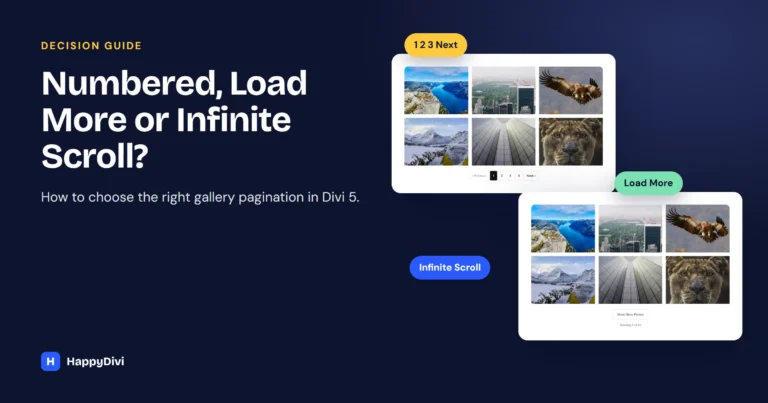
Under Pagination, choose Infinite Scroll if the feed is the whole page, or Load More Button if readers need your footer. Set Images Per Page to 12. Our pagination guide helps you choose.
Check your featured images first
A post gallery is only as good as its featured images. Make sure each post has one, and that it is large enough to stay sharp at three columns.
Gallery or Divi's Blog Module?
| You want | Use |
|---|---|
| A classic list with excerpts | Divi Blog module |
| A custom card layout you design yourself | Divi 5 Loop Builder |
| Images first, Masonry, filters and infinite scroll in one module | HappyDivi Gallery |
Common Problems
A Post Is Missing
It has no featured image, or its category is not in Included Categories.
Images Look Blurry
Set Image Size to Large (1024px), and check the original images are big enough.
A New Post Does Not Appear
Clear your page cache. The gallery reads your posts when the page is built, so a cached page shows the older list until it refreshes.
Frequently asked questions
Does the gallery update when I publish a new post?
Yes. A new post with a featured image appears without editing the page, once any page cache has refreshed.
Can I show posts from only one category?
Yes. Tick it under Included Categories. You can add several galleries to one page to build a topic hub.
Can visitors filter the post gallery?
Yes. Turn on Enable Category Filter under Filter Bar and visitors can switch categories without a page reload.
From HappyDivi
HappyDivi Gallery
One Divi 5 module for galleries from WooCommerce, custom post types and ACF fields.
- Grid, Masonry and Justified layouts
- Built-in lightbox
30-day money-back guarantee
Want the full picture? The Complete Divi 5 Gallery Guide covers every source, layout, lightbox, filter and pagination option.
From HappyDivi
HappyDivi Gallery
One Divi 5 module for galleries from WooCommerce, custom post types and ACF fields.
- Grid, Masonry and Justified layouts
- Built-in lightbox
30-day money-back guarantee