

If you have ever tried to build a professional image gallery in Divi 5 a filterable portfolio, a shoppable product grid, a photography lightbox, a blog post feed with masonry layout you have almost certainly hit the ceiling of what Divi 5's default Gallery module can do. It handles a basic grid of hand-picked Media Library images adequately. Beyond that, you need either a collection of separate plugins or a single gallery module built to cover every use case from day one.
This guide covers that second option in full. It explains every gallery feature available in Divi 5 in 2026, maps each setting to its exact location inside the Visual Builder, and includes four step-by-step recipes you can follow to build four completely different gallery types a blog feed, a photography portfolio, a WooCommerce shop gallery, and a real-estate property grid without writing a single line of code.
The module used throughout this guide is HappyDivi Gallery a native Divi 5 module built specifically for the new React Visual Builder. It is the most complete gallery solution available for Divi 5 and the one that consolidates the most separate plugin responsibilities into a single module.
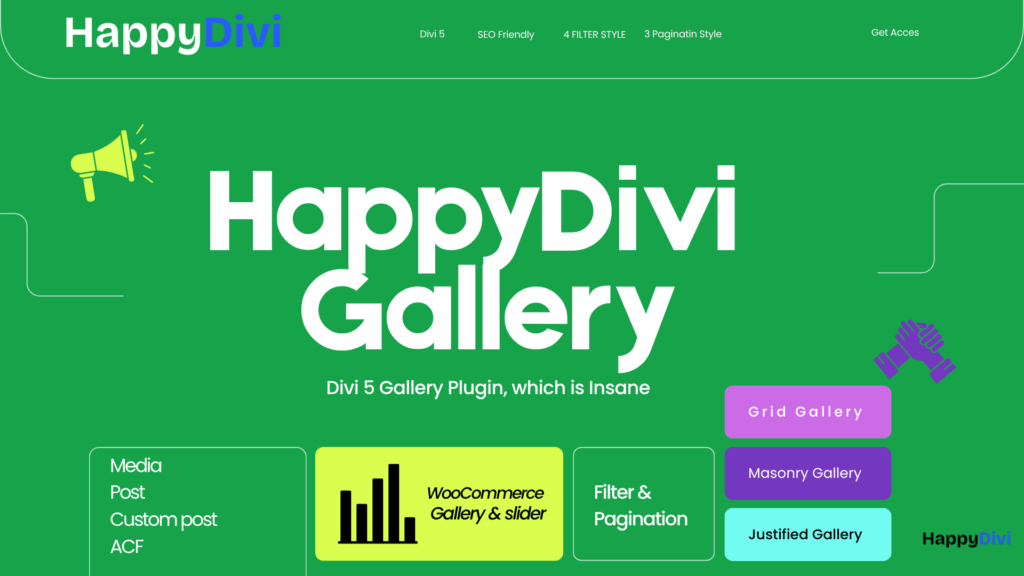
HappyDivi Gallery is a premium gallery module for Divi 5 that adds five dynamic content sources (Media Library, Posts, Custom Post Types, ACF fields and WooCommerce Products), three layout engines (Grid, Masonry and Justified), a zero-dependency lightbox, an animated filter bar and three pagination modes all from a single module inside the Visual Builder, with no shortcodes and zero jQuery.
Let's start with the most important decision in any gallery build: where the images come from.
Part 1: Content Sources Where Your Gallery Images Come From
The single biggest limitation of Divi 5's default Gallery module is that it only knows how to show images you manually pick from the WordPress Media Library. If your images live anywhere else in posts, in a WooCommerce product catalog, in an ACF field, in a custom post type the default module cannot reach them.
HappyDivi Gallery solves this with five content sources. All five share the same layout, lightbox, filter, and pagination options. You switch between sources with a single dropdown no module rebuild required.
Media Library
The most straightforward source. Upload or select images directly from your WordPress Media Library. Drag to reorder. You can also filter by media category if you use a plugin that adds categories to your media library.
Best for: Photography portfolios, static image galleries, hero image collections, before-and-after sets.
Posts and Pages
Instead of manually picking images, this source automatically pulls the Featured Image from any post or page. Set the number of items, filter by category or tag, and choose an order and the gallery updates automatically every time you publish a new post. No manual maintenance.
Best for: Blog post grids, news feeds, magazine-style layouts where new content is added regularly.
For a full step-by-step walkthrough of this source type, see How to Create a Dynamic Gallery from WordPress Post Attachments in Divi 5.
Custom Post Type (CPT)
Identical to the Posts source, but targets any registered custom post type portfolio items, team members, case studies, properties, menu items, events. Choose the CPT from a dropdown in the module settings.
Best for: Portfolio grids, real-estate listings, team pages, any content managed through a CPT.
See How to Build a Custom Post Type Portfolio Gallery in Divi 5 for the full tutorial including filter bar configuration and bookmarkable URLs.
WooCommerce Products
When this source is selected, the module transforms into a fully shoppable product gallery. Product featured images become gallery cells, and a comprehensive set of WooCommerce-specific options becomes available: server-side product filters (sale status, price range, stock, tags, star rating), in-cell pricing and cart buttons, per-cell product image carousels, color swatches, and live frontend controls (sort dropdown, price range slider, active filter chips).
Best for: WooCommerce shops, product showcases, filtered catalog pages.
The complete WooCommerce setup is covered in How to Display WooCommerce Products in a Filterable Gallery in Divi 5.
ACF Image and Gallery Fields
If you use Advanced Custom Fields to store images against posts team photos, project screenshots, case study images, property photos this source reads those fields directly. Choose the post type and the field name from dropdowns in the module settings. No PHP, no custom query, no template modification required.
Best for: Any site where images are stored in ACF fields rather than as featured images.
Full setup walkthrough: Using ACF Gallery Fields as a Dynamic Content Source in Divi 5.
Common Options Across All Sources
Every source shares these controls in the Content tab → Image / Content Source group:
- Number of Items how many images or posts to fetch (1–100).
- Included Categories / Tags multi-select to restrict to specific taxonomy terms; leave blank for all.
- Order By publish date, title (A–Z), menu order, or random.
- Order Direction descending (newest first) or ascending (oldest first).
Part 2: Gallery Layouts Grid, Masonry, and Justified
HappyDivi Gallery ships three professional layout engines, each built from scratch in JavaScript with no third-party library dependency. Layout choice is set under Content tab → Gallery Layout → Layout Style.
Grid Clean, Uniform Cells
Every image occupies an identical cell with a locked aspect ratio. Columns and gap are set independently for desktop, tablet, and phone. Images are cropped or contained within the chosen aspect ratio.
Aspect ratio options: Square (1:1), Landscape (4:3), Wide (16:9), Portrait (3:4), Tall Portrait (2:3).
Image display modes (Grid only):
- Fill & Crop image fills the cell edge to edge; edges are cropped. The cleanest, most consistent look.
- Full Image + Solid Background no cropping; letterbox or pillarbox bars are filled with a chosen solid color.
- Full Image + Blur Background no cropping; the same image is used at large scale and heavy blur as the background behind the contained image. Adjustable blur intensity (0–80 px) creates an artistic double-print effect.
Best for: Product grids, team pages, client logo walls, any gallery where visual uniformity matters more than preserving each image's original proportions.
Masonry Pinterest-Style Variable Heights
Images are arranged in columns but keep their natural height. The JavaScript layout engine places each new image in the shortest column at that moment, producing an organic staggered effect. The layout re-flows automatically on window resize and after any filter or pagination change, with smooth animated transitions.
Best for: Blog post grids, photography collections with mixed-orientation shots, editorial layouts where cropping images would lose important content.
Step-by-step tutorial: How to Create a Masonry Gallery in Divi 5.
Justified Flickr-Style Flush Rows
Every row is stretched to fill the exact container width. Images keep their natural aspect ratios only their scale adjusts so that rows are always exactly flush with both edges and there are no gaps. The result is a newspaper-style grid that feels intentional and professional.
Target Row Height sets the approximate height of each row in pixels. This is a target the engine adjusts slightly per row to make the math work. Set different values for desktop, tablet, and phone.
Last Row Alignment controls what happens to the final row if it does not fill the full container width:
- Left Align items sit at natural size, left-aligned.
- Stretch to Fill Width the last row is stretched like all others, even if it means unusually wide images.
- Hide Incomplete Last Row removes the final row entirely if it is too short.
Best for: Photography portfolios, press photo galleries, any collection where the goal is total visual immersion with no wasted whitespace.
Part 3: The Built-In Lightbox
HappyDivi Gallery ships a zero-dependency lightbox no jQuery, no Magnific Popup, no external library. It loads on demand: the JavaScript chunk is only downloaded the first time a visitor clicks an image. Visitors on pages where they never click the lightbox never download the code.
Lightbox is enabled under Content tab → Click Action → set to Open in Lightbox.
If you are dealing with a broken Divi lightbox on an existing site images do nothing when clicked, or the overlay appears but is unstyled see the full diagnosis and fix guide: Divi Lightbox Not Working in Divi 5? Every Fix + How to Set It Up Correctly.
Navigation
- Previous and next arrows, plus ← → keyboard keys.
- Thumbnail filmstrip at the bottom a scrollable row of small thumbnails for jumping to any image directly. Toggleable.
- Image counter ("3 / 24").
- ESC to close, F for fullscreen, I for info panel, Z for zoom.
- Touch swipe left/right to navigate on mobile.
- Swipe down to close on mobile.
Zoom and Pan
- Click to zoom, scroll wheel zoom, pinch-to-zoom on touch.
- Double-tap to zoom into the exact tapped area.
- Drag to pan when zoomed in.
- Maximum zoom: 4×. Zoom state resets on image change.
Toolbar Buttons
Each button is individually toggleable turn off any you do not need for a given gallery:
| Button | What it does |
|---|---|
| Info Panel | Slide-in panel: EXIF data (camera, aperture, ISO, shutter) for photos; date, author, excerpt for posts; price and Add to Cart for WooCommerce products. |
| Zoom In / Out | Step-wise zoom buttons in addition to scroll and pinch. |
| Download | Downloads the full-resolution image directly to the visitor's device. |
| Fullscreen | True browser fullscreen via the Fullscreen API. |
| Share | Native share sheet on mobile; copies image URL to clipboard on desktop. |
| Close | Closes the lightbox. Clicking the backdrop also closes it. |
Accessibility
The lightbox is a proper role="dialog" with aria-modal="true". A focus trap keeps keyboard focus inside the lightbox while it is open. All transitions respect the visitor's prefers-reduced-motion OS setting users who have opted into reduced motion see instant state changes with no animation.
Part 4: The Category Filter Bar
The filter bar lets visitors narrow the gallery to a specific category without a page reload. It reads category labels directly from the items in the gallery, so there is nothing to configure manually add a new category to your posts and it appears in the filter automatically.
Enable it under Content tab → Filter Bar → Enable Filter toggle.
Four Visual Styles
- Pills rounded pill-shaped buttons; the most versatile, works in most designs.
- Tabs flat tab-style buttons; strong for editorial and publication layouts.
- Buttons standard rectangular buttons; clean and functional.
- Dropdown a compact
element; ideal on mobile or when gallery width is constrained.
All style options are fully styled through the Design tab → Filter Bar Settings group, including text color, background, hover state, active state, border, border radius, and gap between items.
How the Filter Animation Works
When a visitor clicks a filter:
- Items being hidden fade out.
- The layout engine repositions the remaining visible items.
- Newly visible items animate in with a staggered spring effect each item appears a few milliseconds after the previous, creating a ripple rather than a sudden pop.
This three-phase animation works with all three layout engines (Grid, Masonry, Justified) and fires smoothly even on large galleries.
Sticky Filter Bar
When enabled, the filter bar pins to the top of the viewport with position: sticky as the visitor scrolls. The filter remains visible even when the visitor is deep in a long gallery. Can be combined with WooCommerce frontend controls (sort dropdown + price slider) so all interactive controls stay accessible while browsing.
URL Deep Linking
When the Deep Link option is enabled, the active filter writes a query parameter to the URL for example, ?hdg_cat=architecture using history.pushState without a page reload. Visitors can bookmark or share the filtered view and return to exactly the same state. This is particularly powerful for portfolio sites and case study pages where you want sharable filtered URLs.
For a complete deep-link walkthrough, see How to Build a Custom Post Type Portfolio Gallery in Divi 5.
Part 5: Pagination Three Modes
Pagination loads images progressively rather than dumping everything at once. This improves initial page load time and keeps long galleries manageable for visitors. All three modes work without a page reload and integrate seamlessly with the filter bar.
Enable pagination under Content tab → Pagination → Enable Pagination toggle, then choose a mode.
For a detailed technical comparison of all three modes including performance benchmarks, see Divi Gallery Pagination in Divi 5: AJAX, Load More & Infinite Scroll Explained.
Load More Button
A button appears below the gallery. Each click reveals the next batch of items with a staggered entrance animation. The button disappears automatically when all items are shown. Button label is fully customisable ("Load More", "Show More", "See All Work" anything you like).
Best for: Galleries where you want the visitor to consciously choose to see more content. Reduces bandwidth usage visitors who never click "Load More" never download images they do not see.
Infinite Scroll
An invisible sentinel element is monitored with IntersectionObserver. When the sentinel enters the viewport meaning the visitor has scrolled near the bottom of the current page the next batch is automatically revealed. No button, no click required.
Best for: Blog post grids, editorial feeds, Pinterest-style discovery galleries where scroll momentum should feel uninterrupted.
Note: Infinite Scroll uses IntersectionObserver internally, not a scroll event listener. This means it adds zero per-scroll processing cost it only fires when the sentinel crosses the viewport threshold.
Numbered Pages
A standard page-number bar with Previous and Next controls. Includes smart truncation so the bar never overflows on galleries with many pages: 1 2 … 47 48 49 … 99 100. Previous and Next labels are fully customisable.
Best for: Archives, product catalogs, any gallery where visitors may want to navigate to a specific page or share a link to page 3 of results.
Per-Device Visibility
Each pagination mode can be hidden independently on desktop, tablet, or phone. For example: show Numbered Pages on desktop but switch to Load More on mobile. This is set under Content tab → Pagination → Show on Desktop / Tablet / Phone toggles.
Part 6: Lazy Loading
Lazy loading delays image download until an image is about to enter the viewport, dramatically reducing initial page load weight on large galleries.
Configure it under Content tab → Lazy Loading.
PHP renders a 1×1 transparent GIF placeholder for every image on page load. The real image URL is stored in a data-src attribute. An IntersectionObserver watches each image and begins loading the real source when the image is within 200 px of the viewport close enough that images appear already loaded as the visitor scrolls naturally.
Placeholder Modes
- Blur-up (default) a low-resolution blurred version of the image fades to sharp as the full image loads. The most polished, photographic feel.
- Skeleton shimmer a pulsing grey shape fills the cell while the image loads. Common in modern app UIs (Gmail, LinkedIn).
- None no placeholder; the image simply appears when fully downloaded.
When to Turn Lazy Loading Off
For galleries positioned above the fold the first thing visitors see on page load lazy loading should be disabled entirely. When lazy loading is on, the browser must wait for the IntersectionObserver to fire before downloading above-the-fold images, which delays the Largest Contentful Paint (LCP) score. Turn it off under Content tab → Lazy Loading → Enable Lazy toggle.
Part 7: WooCommerce The Full Feature Set
When content source is set to WooCommerce Products, a full commerce layer becomes available. This transforms the gallery from a display tool into a shoppable catalog.
Server-Side Product Filters
Filter which products appear in the gallery before rendering:
| Filter | Options |
|---|---|
| Sale Status | All / On-sale only / Full-price only |
| Featured Only | Restrict to products marked "Featured" |
| Min / Max Price | Set a price floor and ceiling |
| Stock Status | In Stock / Out of Stock / On Backorder |
| Product Tags | Multi-select tag filter |
| Minimum Rating | 1–5 star minimum average |
In-Cell Product Display
Inside each gallery cell, you can show:
- Price with strikethrough when on sale.
- Sale Badge customisable label, corner position, and colors.
- Out-of-Stock Badge customisable label.
- Add to Cart button AJAX add-to-cart (no page reload). Full-width option. Fully customisable colors.
- Cart Icon on hover a floating cart icon that appears when the visitor hovers over the image. Customisable size, color, background, and border radius.
Per-Cell Product Carousel
Each gallery cell can become a mini slideshow of all the product's gallery images not just the featured image. Arrows, dot indicators, infinite loop, autoplay, autoplay interval, and transition speed are all configurable. Color swatches are also supported: when a product has a color attribute (such as pa_color), color dots appear in the corner of the cell, and clicking a dot jumps the in-cell carousel to that variant's image.
Frontend Controls for Visitors
Three interactive controls render directly on the live page, allowing visitors to sort and filter without leaving:
- Sort Dropdown visitors choose Default, Price Low→High, Price High→Low, Top Rated, or A–Z.
- Price Range Slider a dual-handle slider reflecting the actual min and max prices in the fetched product set. Dragging filters the gallery in real time.
- Active Filter Chips a row of removable labels showing which filters are active. Clicking a chip removes that filter instantly.
For the complete WooCommerce gallery tutorial, see How to Display WooCommerce Products in a Filterable Gallery in Divi 5.
Part 8: Performance and Accessibility
The entire module is vanilla ES2020 with no jQuery dependency. Layout engines and the lightbox are code-split so they only download when used. Lazy loading uses IntersectionObserver with a 200 px preload margin. Gallery HTML is rendered on the server so visitors see images before any JavaScript runs.
Performance Architecture
- Zero jQuery. All JavaScript is vanilla ES2020. jQuery is not loaded, not required, not referenced anywhere in the codebase.
- Code splitting. Each feature the Masonry engine, the Justified engine, the lightbox, the filter, the pagination, the product carousel, the cart icon is a separate JavaScript chunk. The browser only downloads code for features that are actually in use on the current page.
- Server-side rendering. PHP generates the complete gallery HTML. Visitors see images immediately, before any JavaScript has loaded or executed. JavaScript then progressively enhances the gallery.
- IntersectionObserver everywhere. Both lazy loading and Infinite Scroll use IntersectionObserver, not
scrollevent listeners. No per-scroll processing overhead. - ResizeObserver for layout recalculation. Masonry and Justified layouts respond to container width changes using ResizeObserver on the gallery wrapper, not a global
window.resizelistener. - requestAnimationFrame debouncing. Rapid resize events or quick filter changes collapse into a single layout pass per animation frame. No layout thrashing.
- Lightbox image preloading. While viewing any image, the next and previous images are preloaded in the background, so navigation feels instant.
This architecture matters directly for Core Web Vitals. See Why Your Divi Gallery Is Slow (And How to Fix It in Divi 5) Core Web Vitals Edition for a detailed breakdown with benchmark comparisons against jQuery-based gallery plugins.
Accessibility
- Semantic HTML throughout:
figure,figcaption,nav,button,aused correctly. - Lightbox is a proper
role="dialog"witharia-modal="true"and a descriptivearia-label. - Focus trap in the lightbox keyboard focus stays inside while the lightbox is open.
- All interactive controls have
aria-labelattributes. - Filter buttons use
aria-pressedto communicate selected state to assistive technology. - All animation systems entrance animations, filter transitions, carousel transitions, lightbox transitions respect
prefers-reduced-motionand are skipped or simplified for users who have opted into reduced motion.
Part 9: Where Every Setting Lives in the Visual Builder
Use this reference when writing your own tutorials or following along with the recipes below.
Content Tab
| Group | What's Inside |
|---|---|
| Image / Content Source | Source type, media picker, CPT selector, ACF field, taxonomy filters, item count, order, WooCommerce server-side filters and frontend control toggles |
| Caption | Title, caption, price, sale badge, OOS badge, Add to Cart, cart icon; content position (over / below); vertical and horizontal alignment; always visible vs hover-only |
| Product Carousel | Enable carousel, arrows, dots, loop, autoplay, speed, color swatches |
| Gallery Layout | Layout style, columns, gap, image size, aspect ratio, display mode, blur intensity, justified row height, last-row behavior |
| Filter Bar | Enable, hide All, All label, deep link, style (Pills / Tabs / Buttons / Dropdown), position, sticky |
| Pagination | Enable, mode (Load More / Infinite / Numbered), items per page, labels, per-device visibility |
| Click Action | Lightbox / URL / None; lightbox toolbar toggles (thumbnails, info, download, fullscreen, zoom, share) |
| Lazy Loading | Enable, placeholder mode (Blur-up / Skeleton / None) |
Design Tab
| Group | What's Inside |
|---|---|
| Image Style | Border (radius, color, width responsive + hover), CSS filters (hue, saturation, brightness, contrast, blur, opacity, invert with hover transitions) |
| Overlay | Enable, hover-only, full Divi background picker (solid, gradient, image, video) |
| Caption Typography | Title and subtitle font controls |
| Filter Bar Settings | Alignment, gap, height, padding, all color states (text / bg / hover / active / border), border width + radius, tab underline, dropdown styling, sticky bar background |
| Pagination | Alignment, all color states, gap, border, padding, font size + weight, margin |
| Lightbox | Backdrop background (full Divi background picker) |
| WooCommerce Style | Badge positions + colors, cart button colors, price colors, cart icon styling, frontend controls accent color |
| Item Settings | Per-item border, box shadow, spacing |
Part 10: Four Recipes Build Any Gallery Type in Minutes
Recipe 1: Pinterest-Style Blog Gallery (Masonry + Infinite Scroll)
Goal: An auto-updating grid of blog post thumbnails in variable-height Masonry layout that loads more posts as the visitor scrolls.
- Content tab → Image / Content Source → Source: Posts. Choose categories. Items: 24.
- Content tab → Gallery Layout → Style: Masonry. Columns: 3 desktop / 2 tablet / 1 phone. Gap: 16 px.
- Content tab → Caption → Show Title. Content Position: Below Image.
- Content tab → Pagination → Enable. Mode: Infinite Scroll. Items per page: 12.
- Content tab → Click Action → Go to Post URL (same tab).
Result: A gallery that updates automatically when you publish new posts, loads silently as visitors scroll, and sends click traffic to your individual post pages.
Recipe 2: Flickr-Style Photography Portfolio (Justified + EXIF Lightbox)
Goal: A flush-row photo gallery where every image is shown at full natural proportions, with a lightbox that shows EXIF camera data.
- Content tab → Image / Content Source → Source: Media Library. Select your photos.
- Content tab → Gallery Layout → Style: Justified. Target Row Height: 220 px desktop / 160 px phone. Last Row: Stretch to Fill Width.
- Content tab → Click Action → Open in Lightbox. Enable: Info Panel, Zoom, Fullscreen, Download.
- Content tab → Lazy Loading → Placeholder: Blur-up.
Result: A professional photography portfolio where camera metadata (aperture, ISO, shutter speed) is available inside the lightbox for every image.
Recipe 3: Shoppable WooCommerce Gallery with Live Price Filter
Goal: A product gallery with live sort and price filtering, per-cell product carousels, and in-lightbox Add to Cart.
- Content tab → Image / Content Source → Source: WooCommerce Products. Items: 60. Stock Status: In Stock. Enable: Frontend Sort, Frontend Price Slider.
- Content tab → Caption → Show: Price, Sale Badge, Out-of-Stock Badge, Cart Icon (hover).
- Content tab → Product Carousel → Enable. Arrows: on. Dots: on. Autoplay: off.
- Content tab → Filter Bar → Enable. Style: Pills. Sticky: on. Deep Link: on.
- Content tab → Pagination → Mode: Load More. Items per page: 12.
Result: A fully interactive product gallery with sort, price filter, per-product image carousel, and one-click add-to-cart without a separate WooCommerce page template.
Recipe 4: Real-Estate Property Grid from a Custom Post Type
Goal: A filterable grid of property listings pulled automatically from a property custom post type, with click-through to individual listing pages.
- Content tab → Image / Content Source → Source: Custom Post Type → select
property. - Content tab → Gallery Layout → Style: Grid. Columns: 3. Aspect Ratio: Landscape 4:3. Display Mode: Fill & Crop.
- Content tab → Caption → Show: Title + Caption (use the caption field for price / location). Content Position: Below Image.
- Content tab → Filter Bar → Enable. Style: Tabs. Deep Link: on. (Visitors can share
?hdgcat=beachfrontor?hdgcat=city-centre.) - Content tab → Click Action → Go to Post URL (same tab).
Result: A self-maintaining property gallery add a new listing as a CPT post with a featured image and it appears in the gallery automatically.
What the Default Divi 5 Gallery Cannot Do
Before closing, here is a quick summary of what makes HappyDivi Gallery different from the gallery module Divi 5 ships with out of the box. For the full breakdown with a fix for each limitation, see 10 Things Divi's Default Gallery Module Cannot Do (And the Exact Fix for Each).
| Capability | Default Divi 5 Gallery | HappyDivi Gallery |
|---|---|---|
| Content sources | Media Library only | Media Library, Posts, CPT, ACF, WooCommerce |
| Layouts | Grid only | Grid + Masonry + Justified |
| Category filter bar | ✗ | 4 styles + sticky + URL deep-link |
| Pagination | Page reload | AJAX Load More, Infinite Scroll, Numbered Pages |
| Lightbox | Magnific Popup (often missing in Divi 5) | Built-in zero-dependency lightbox |
| WooCommerce support | ✗ | Full: price, cart, swatches, carousel, filters |
| Lazy loading control | ✗ | On/Off + Blur-up / Skeleton / None |
| Per-cell carousel | ✗ | Full product image carousel per cell |
| prefers-reduced-motion | ✗ | All animations respected |
| Entrance animations | None | Staggered column-aware fade-up |
Getting Started
HappyDivi Gallery is available with lifetime and yearly unlimited-site licences from happydivi.com/gallery. Installation is standard WordPress (Plugins → Add New → Upload Plugin). The module appears in the Divi 5 Visual Builder immediately on activation no additional configuration, no API key, no shortcode setup.
Get HappyDivi Gallery → Lifetime + yearly unlimited-site licences from happydivi.com/gallery. One module replaces 3–4 separate gallery plugins.
Frequently Asked Questions
Is HappyDivi Gallery compatible with Divi 5?
Yes and exclusively. HappyDivi Gallery is written specifically for Divi 5's React-based Visual Builder. It is not a Divi 4 plugin retrofitted for Divi 5. It integrates natively with Divi 5's module system, design controls, responsive preview, preset saving, and all standard Divi decoration panels (backgrounds, borders, box shadow, animations, conditions, interactions, scroll effects, sticky, and more).
Does it work with the Divi Theme Builder?
Yes. HappyDivi Gallery is a standard Divi 5 module and can be placed anywhere you can place any other Divi module on pages, in the Theme Builder, in global headers and footers, in popups, and inside Divi Columns.
Does it require any other plugins?
No additional plugins are required for core functionality. WooCommerce integration requires WooCommerce to be active. ACF integration requires Advanced Custom Fields (free or Pro) to be active. For all other sources (Media Library, Posts, Custom Post Types), no additional plugins are needed.
Does it slow down pages that do not have a gallery?
No. HappyDivi Gallery registers its scripts with Divi's asset loading system. Scripts and styles are only enqueued on pages that actually contain the module. On pages with no HappyDivi Gallery module, zero additional bytes are loaded.
Can I have multiple galleries on the same page?
Yes. Multiple HappyDivi Gallery modules on the same page work independently. Each has its own source, layout, filter, and pagination settings. They do not interfere with each other.
Does HappyDivi Gallery work with caching plugins like WP Rocket or LiteSpeed Cache?
Yes, with the standard best practice of excluding Divi's scripts from aggressive JS optimization. Because HappyDivi Gallery uses code splitting, each feature's JavaScript chunk is loaded only when needed but aggressive JS combining or deferral by a caching plugin can prevent this. Add Divi's script handles to your caching plugin's exclusion list, which is recommended for all Divi 5 sites regardless of gallery plugin.
This guide is maintained by the HappyDivi team and updated with every major plugin release. For the full technical feature reference, visit happydivi.com/gallery.